 POSSO VOAR?
User manual
Site: possovoar.com.br · version of October 20, 2026 · João Villar
Summary
This manual shows, screen by screen, how to use Posso Voar? ("Can I fly?"), the cockpit-style panel for drone operators. Every instrument and button is explained with a real screenshot. For the calculation methods, the sources and the rules, see possovoar.com.br/en/about.
Posso Voar? is a situational awareness tool. It does not replace checking NOTAMs, the airspace authorization (SARPAS NG/DECEA in Brazil, LAANC in the USA) or the aviation authority rules (ANAC, FAA). The decision to fly always belongs to the remote pilot in command.
1. Getting started
- Open possovoar.com.br in the browser of your phone, tablet or computer. Outside Brazil it opens in English; the PT button at the top switches to Portuguese.
- Allow access to your location. The panel centers everything on your position. If you prefer, type coordinates or an address in CONFIG (section 4).
- Tap the screen once. Browsers only release sound and voice after the first tap; without it, the alarms and the radio stay silent.
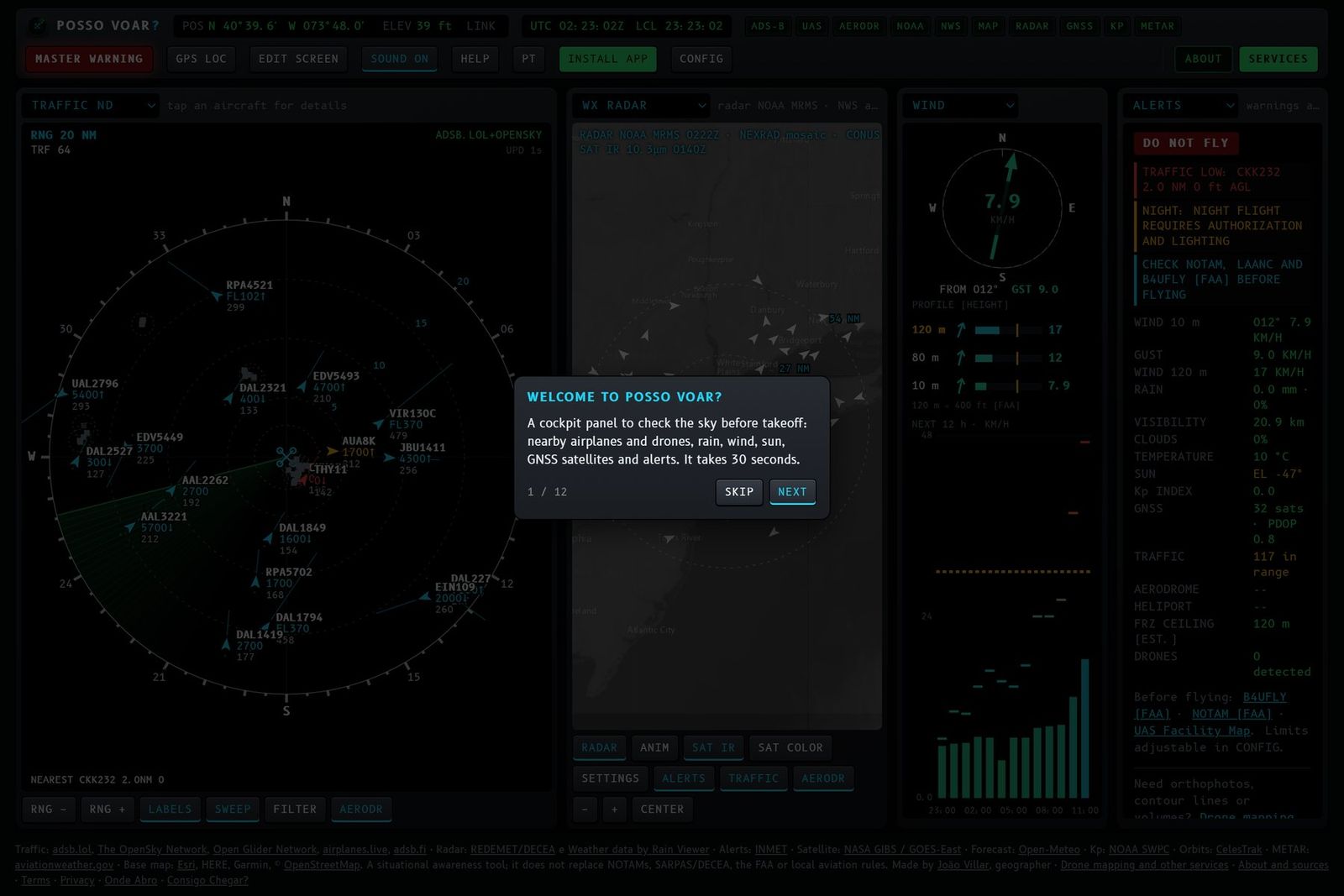
- On the first visit a quick tutorial appears. You can see it again at any time in HELP → QUICK TUTORIAL.
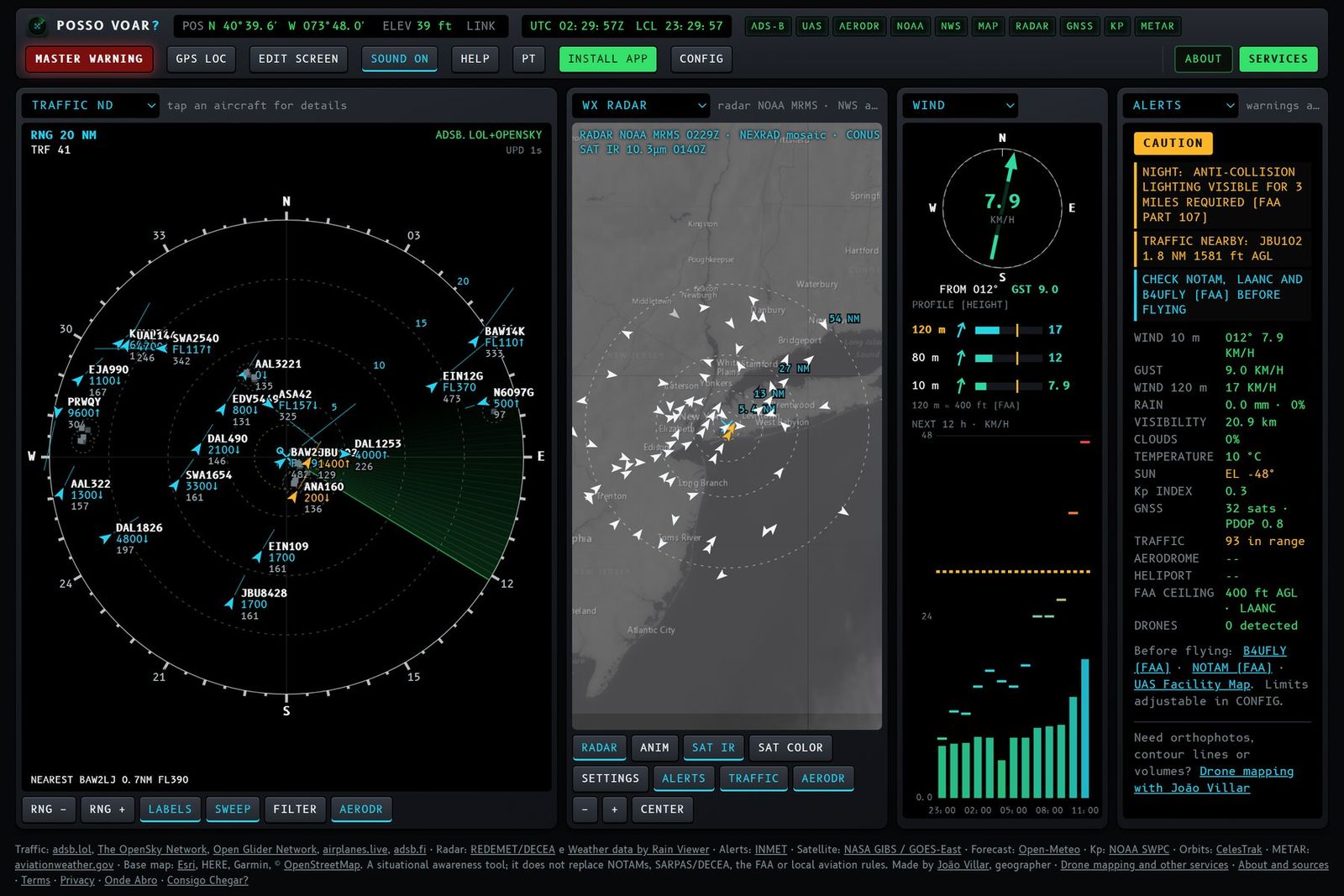
2. Top bar
| Item | What it does |
|---|---|
| Logo and name | Identifies the panel. |
| POS and ELEV | Your latitude and longitude, the terrain elevation and the source of the position (GPS, FIXED or LINK). Tap to search an address. |
| UTC and LCL | UTC time (Z), used in aviation, and local time. |
| Source lights | One light per data source: ADS-B (traffic), UAS (drones), AERODR (aerodromes), MET (weather), INMET (alerts), MAP, RADAR, GNSS, KP and METAR. In the USA, MET becomes NOAA and INMET becomes NWS. Green: data arriving. Red: the source did not respond now. Amber: simulated data, demo mode only. |
| MASTER WARNING / CAUTION | Master alert button. Red is risk (DO NOT FLY), amber is caution. Tap to acknowledge and silence the alarm; it takes you to the Alerts panel. |
| GPS LOC | Asks the device GPS for the position again. |
| EDIT SCREEN | Unlocks the grid to build the panel (section 3). |
| SOUND ON/OFF | Turns all sound alarms and the voice on and off. |
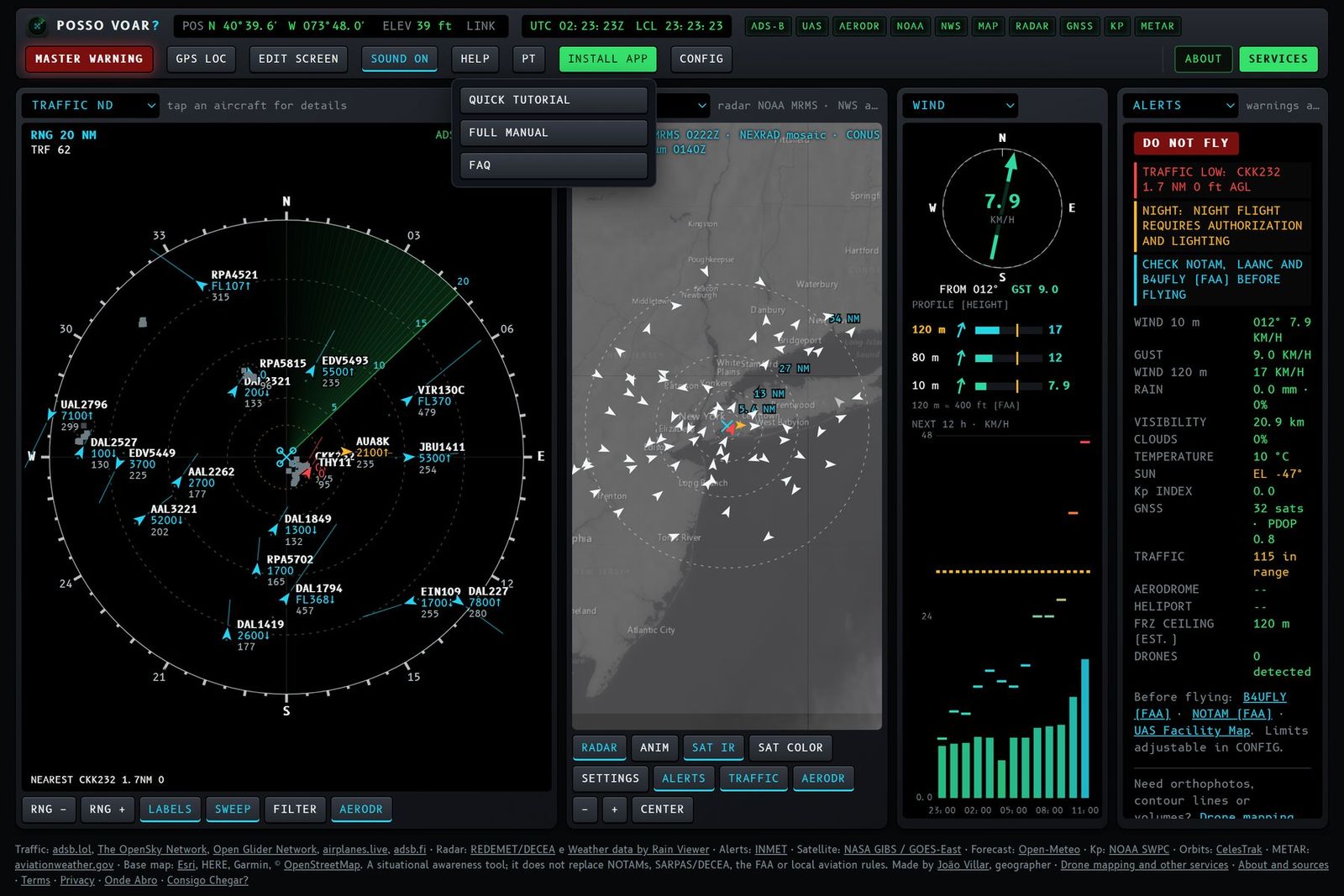
| HELP | Opens the menu with QUICK TUTORIAL, FULL MANUAL (this page) and FAQ. |
| EN / PT | Switches the site language: English or Portuguese (section 8). |
| CONFIG | Opens the settings (section 4). |
| ABOUT and SERVICES | Methodology, privacy and terms pages, and the drone mapping services. |
| INSTALL APP | Appears when the device allows installing the panel as an app (section 7). |
3. Building your screen
Each frame of the panel is an instrument. At the top of each one there is a selector to change what it shows and, at the bottom, the function keys of that instrument.
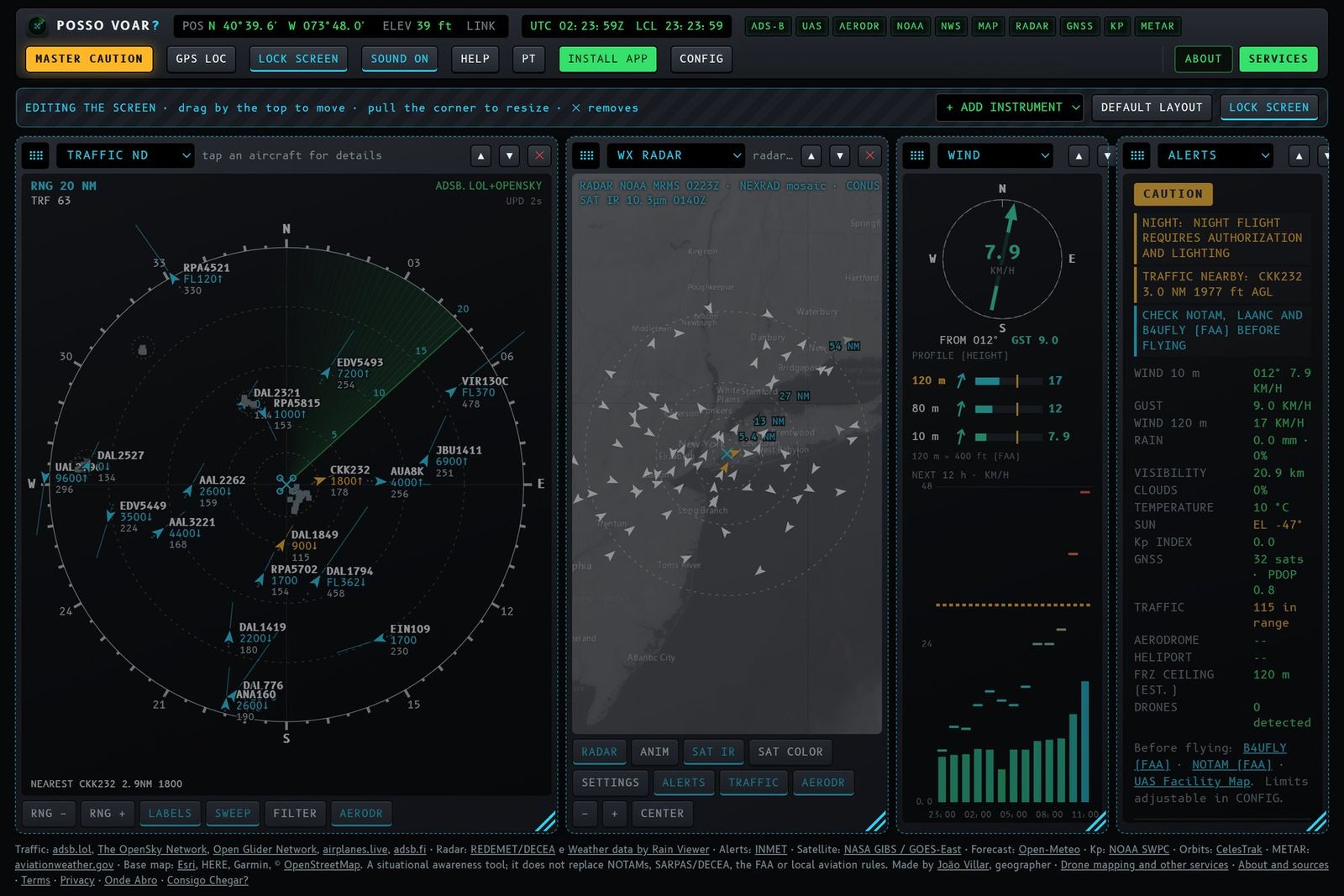
- Tap EDIT SCREEN. The grid becomes dashed and the edit bar appears.
- Move: drag the instrument by its top bar. On a keyboard, use the arrows on the ⠿⠿ icon.
- Resize: pull the lower right corner. On a keyboard, Shift + arrows.
- Add: pick from + ADD INSTRUMENT. Instruments can be repeated, for example two radars with different ranges.
- Remove: tap the instrument's ✕. ▲ ▼ change the order.
- DEFAULT LAYOUT goes back to the initial arrangement.
- Tap LOCK SCREEN to finish. The arrangement is saved on the device.
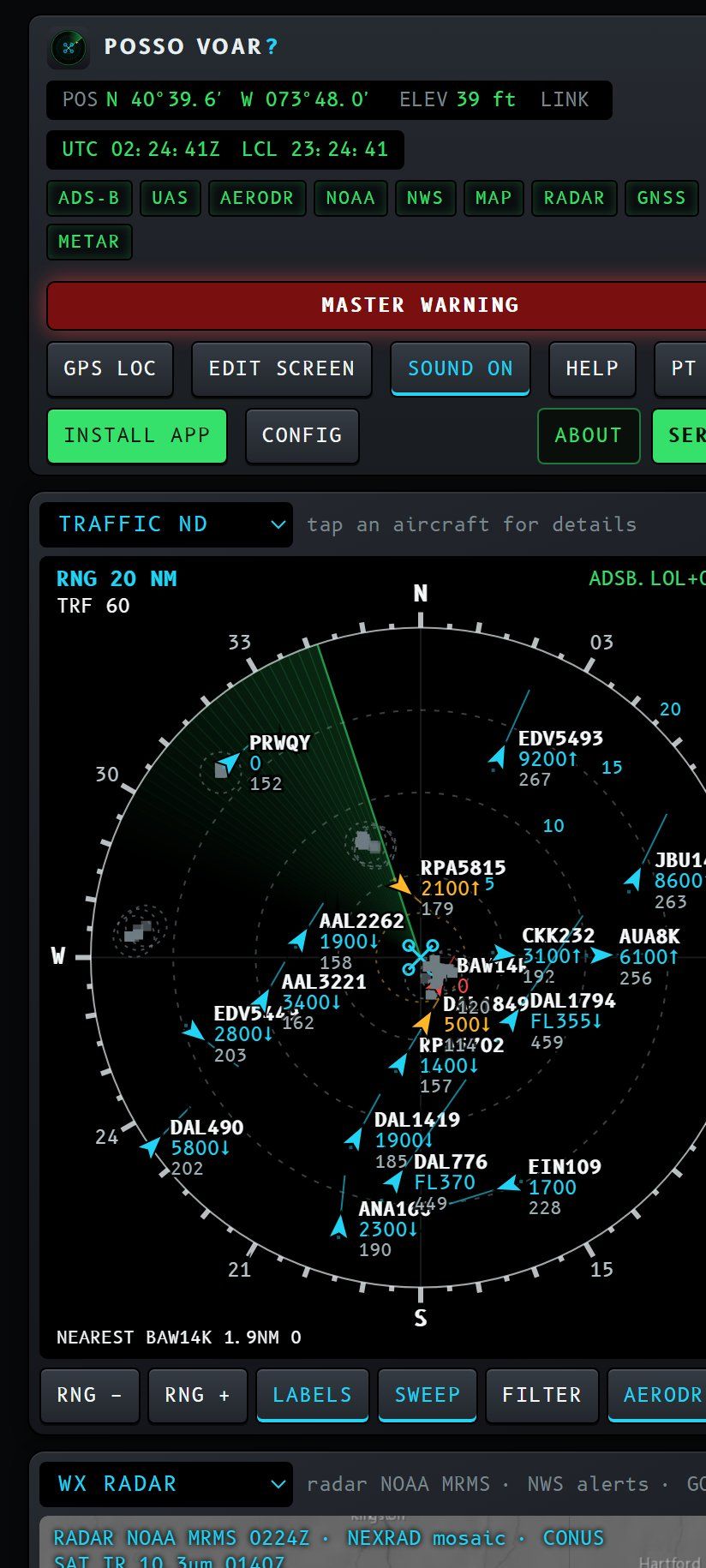
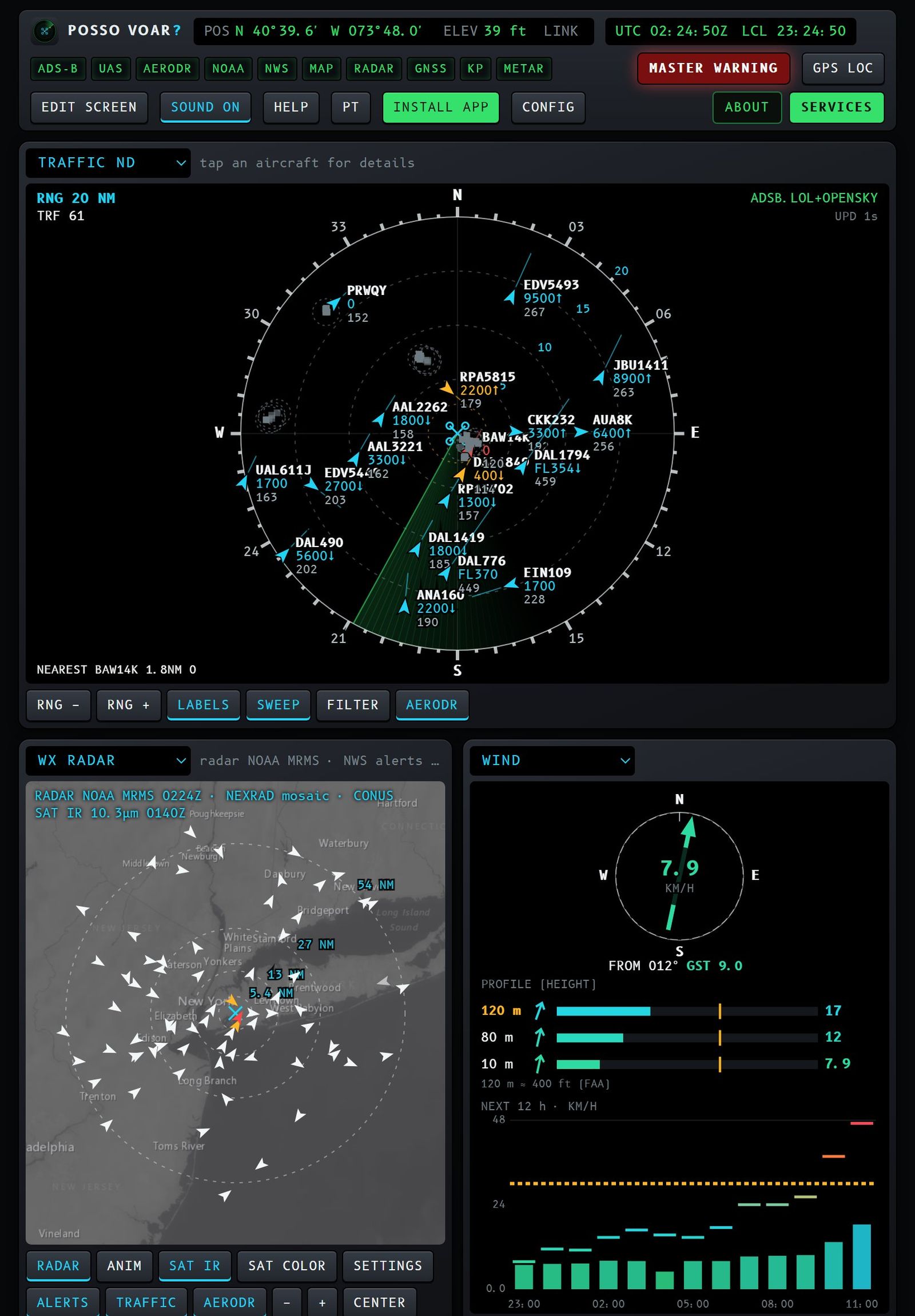
On a phone the grid becomes one column, and on a tablet, two.
4. Settings (CONFIG)
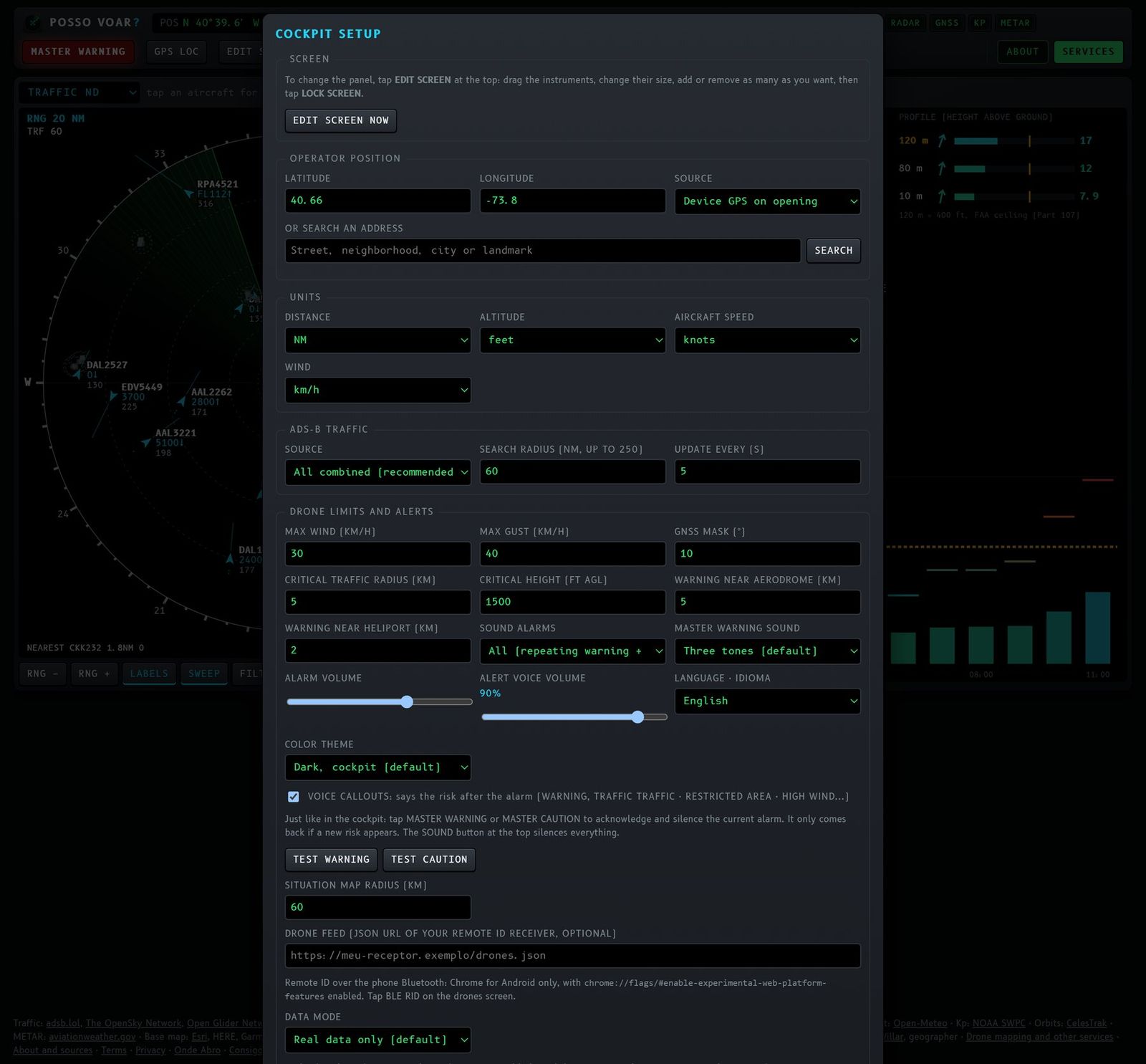
- Screen. The EDIT SCREEN NOW shortcut.
- Operator position:
- latitude and longitude;
- SOURCE: GPS on opening, or a fixed position;
- address search, with results sorted by similarity and distance, and a note when the house number is not on the map.
- Units. Distance (NM or km), altitude (feet or meters), aircraft speed (knots or km/h) and wind (km/h, m/s or knots).
- ADS-B traffic. Source (all combined, recommended, or a single one), search radius up to 250 NM and update interval.
- Drone limits and alerts:
- maximum wind and gust;
- GNSS elevation mask;
- critical traffic radius and height (helicopters use 1.5 times these values);
- warning distance for aerodromes and heliports.
- Sound alarms. Mode (all, warning only, caution only or silenced), MASTER WARNING sound (Airbus continuous repetitive chime, the default; Boeing warning siren; fire bell; Airbus autopilot-disconnect cavalry charge; overspeed clacker; three low chimes or three electronic beeps), warning repetition (every 5 s, continuous like in the cockpit, every 15 s or just once), alarm volume, alert voice volume (separate; when you release the control, the voice says "TRAFFIC, TRAFFIC" as a test), voice on or off, and the TEST WARNING and TEST CAUTION buttons.
- Language · Idioma. English or Portuguese (the page reloads in the chosen language).
- Color theme. Dark, cockpit (default), or light, for bright sun. It also applies to the site pages.
- Situation Map radius.
- Drone feed. JSON address of your own Remote ID receiver (optional).
- Data mode. Real data only (default), real data simulating what fails, or demo.
- APPLY saves; RESTORE DEFAULTS goes back to the initial settings (asks for confirmation).
5. Instruments (avionics)
The panel has 13 instruments. Six already appear on the default screen: the first row fills the screen height, with the larger Traffic ND (5 of 12 columns), the WX radar, the Wind and the Alerts; scrolling down you find the COM radio, full width, and the METAR. The other seven are optional: add them with the selector at the top of any frame or with + ADD INSTRUMENT in EDIT SCREEN (section 3). All of them can be repeated, moved and resized.
| Instrument | On the default screen? | What it is for | Data source | Updates every |
|---|---|---|---|---|
| TRAFFIC ND | yes (1st row, left, the largest) | radar of airplanes and helicopters around you | ADS-B (adsb.lol), OpenSky, OGN | 5 to 60 s (CONFIG) |
| WX RADAR | yes (1st row) | rain, satellite and official alerts on the map | REDEMET (Brazil), NOAA MRMS (USA), RainViewer, NASA GIBS, INMET/NWS | 5 min (satellite 10 min) |
| WIND | yes (1st row) | wind now, profile up to 180 m and 12-h forecast | Open-Meteo (NOAA GFS/HRRR in the USA) | 10 min |
| ALERTS | yes (1st row, right) | DO NOT FLY / CAUTION / OK summary and alert list | all the others | 2 s |
| COM RADIO | yes (below, full width) | COM 1 and COM 2 with live tower and control audio | YouTube (live streams), OurAirports, own stream | automatic search |
| METAR | yes (below the radio) | observed conditions at nearby airports | aviationweather.gov | 10 min |
| TRAFFIC LIST | optional | the radar aircraft in a table | same as Traffic ND | 2 s |
| NEARBY DRONES | optional | other drones by Remote ID, ADS-B UAV or feed | phone Bluetooth, ADS-B, own feed | continuous |
| SITUATION MAP | optional | ICA 100-40 restriction zones (Brazil) and gridded weather | ANAC/OurAirports/OSM base, Open-Meteo | base monthly; weather 15 min |
| SOLAR | optional | light, Sun, radiation, UV and twilight | Open-Meteo and astronomical calculation | 30 s |
| GNSS SKY | optional | visible satellites and accuracy (DOP) | CelesTrak orbits | 15 s (orbits 6 h) |
| SPACE WEATHER | optional | Kp index and effect on GNSS and compass | NOAA SWPC | 5 min |
| NOTAM | optional | NOTAMs of aerodromes within 40 km | AISWEB (DECEA) in Brazil, FAA NOTAM API in the USA | 10 min |
All instruments follow the same cockpit conventions:
- colors: green or cyan = normal; amber = caution; red = limit exceeded; magenta = aerodromes and heliports;
- lit key (cyan outline) = function on; tap again to turn it off;
- text next to the instrument name = hint or source in use;
- NO DATA in red = the source failed; its light in the top bar also turns red. Nothing is made up: simulation only appears if you choose it in CONFIG, and then it is marked SIMULATED or EXAMPLE.
Default screen instruments
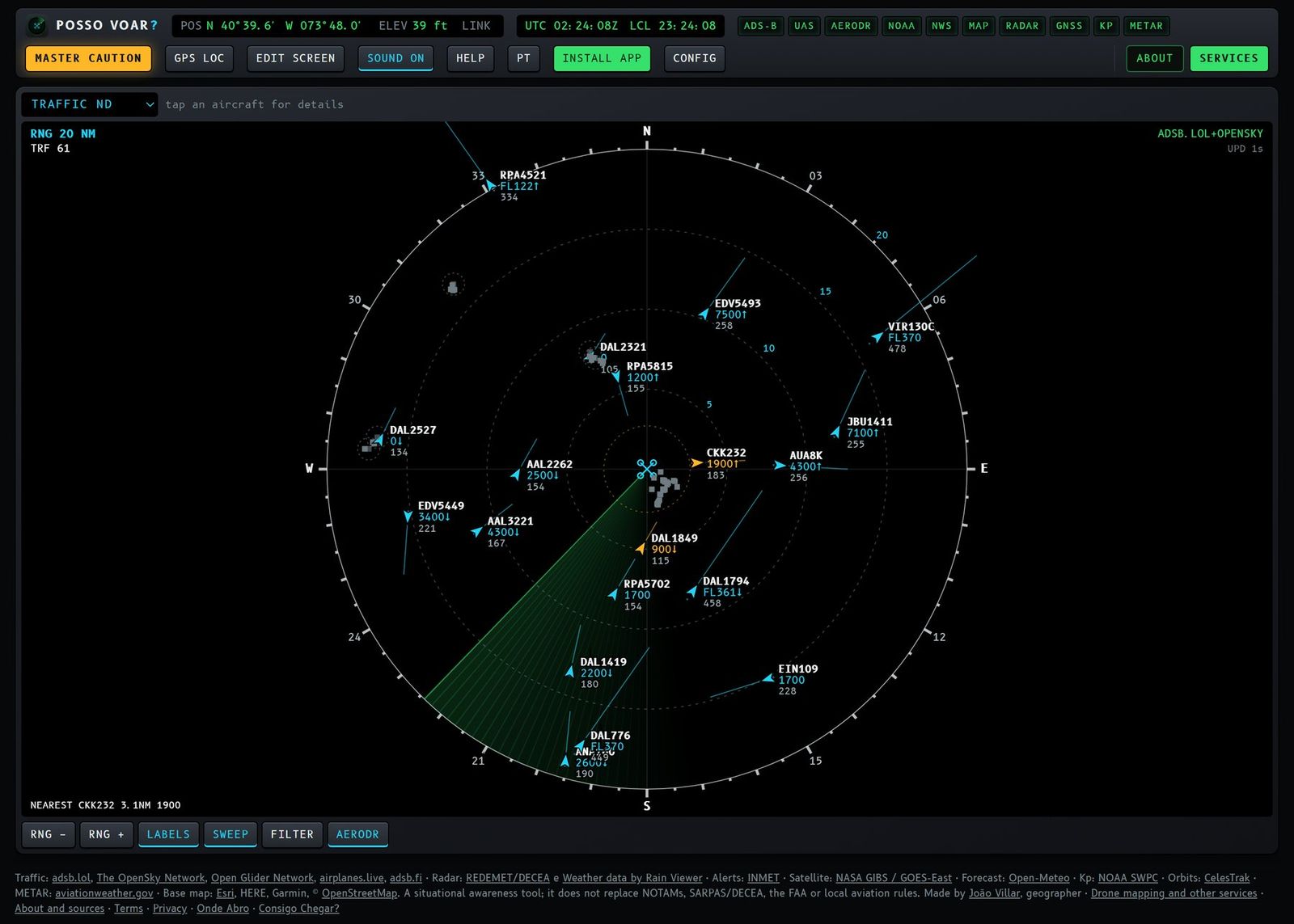
5.1 Traffic ND
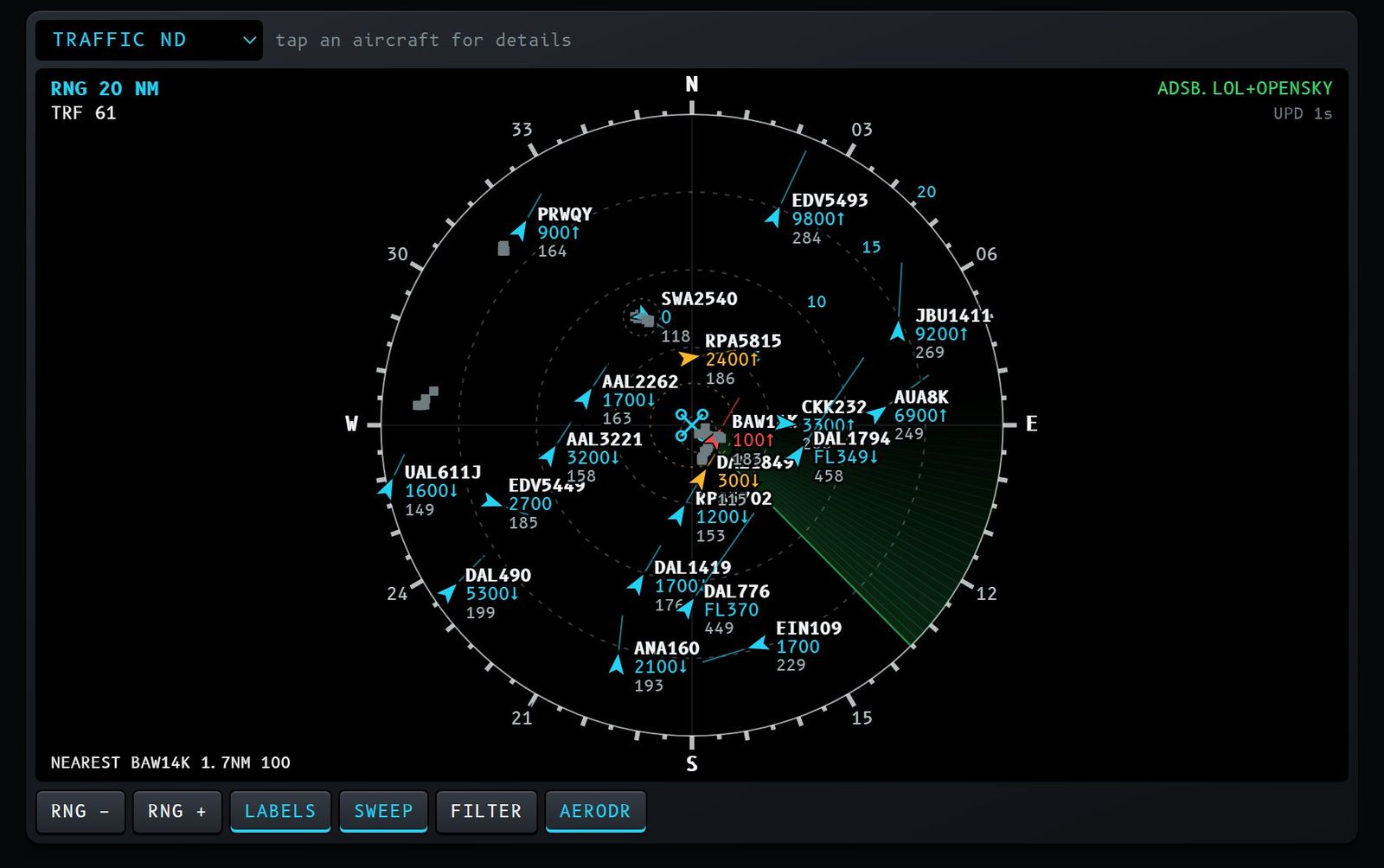
On the default screen: yes, first row, left; it is the largest frame.
What it is for. It is the traffic radar, like an airplane Navigation Display. It shows the airplanes and helicopters around you so you know who may cross your area before and during the flight.
What you see:
- you at the center, north up; the rings mark distance and the green band is the sweep;
- in the corner, the range (RNG), the number of aircraft (TRF), the active source (for example ADSB.LOL+OPENSKY) and how many seconds ago the last update arrived;
- at the bottom, the NEAREST aircraft, with distance and altitude;
- the dashed amber ring is your alert radius (CONFIG).
Symbols:
- arrow: airplane, pointing where it is going;
- rotor: helicopter;
- magenta diamond with code: aerodrome; with "H", heliport; dashed diamond: place outside the official register.
Label of each aircraft: flight or registration, altitude (FL or feet), ↑↓ if climbing or descending, and speed. The line ahead shows where it will be in 1 minute, and the dots behind, where it has been.
Colors:
- white/cyan: normal;
- amber: inside the alert radius and height;
- red: low and close, or emergency transponder code (7500, 7600 or 7700).
Keys:
- RNG − / RNG +: range from 2 to 160 NM (or 5 to 300 km, depending on the unit in CONFIG);
- LABELS: turns the aircraft texts on and off;
- SWEEP: turns the sweep band on and off;
- FILTER: cycles through all, below 10,000 ft, low only and helicopters only;
- AERODR: turns aerodromes and heliports on and off.
Tap an aircraft to open the detail card: type, registration, AGL altitude, track, speed, distance and CPA (closest point of approach), with the time to it. Tap again, or elsewhere, to close the card. The chosen aircraft is also highlighted in the Traffic list.
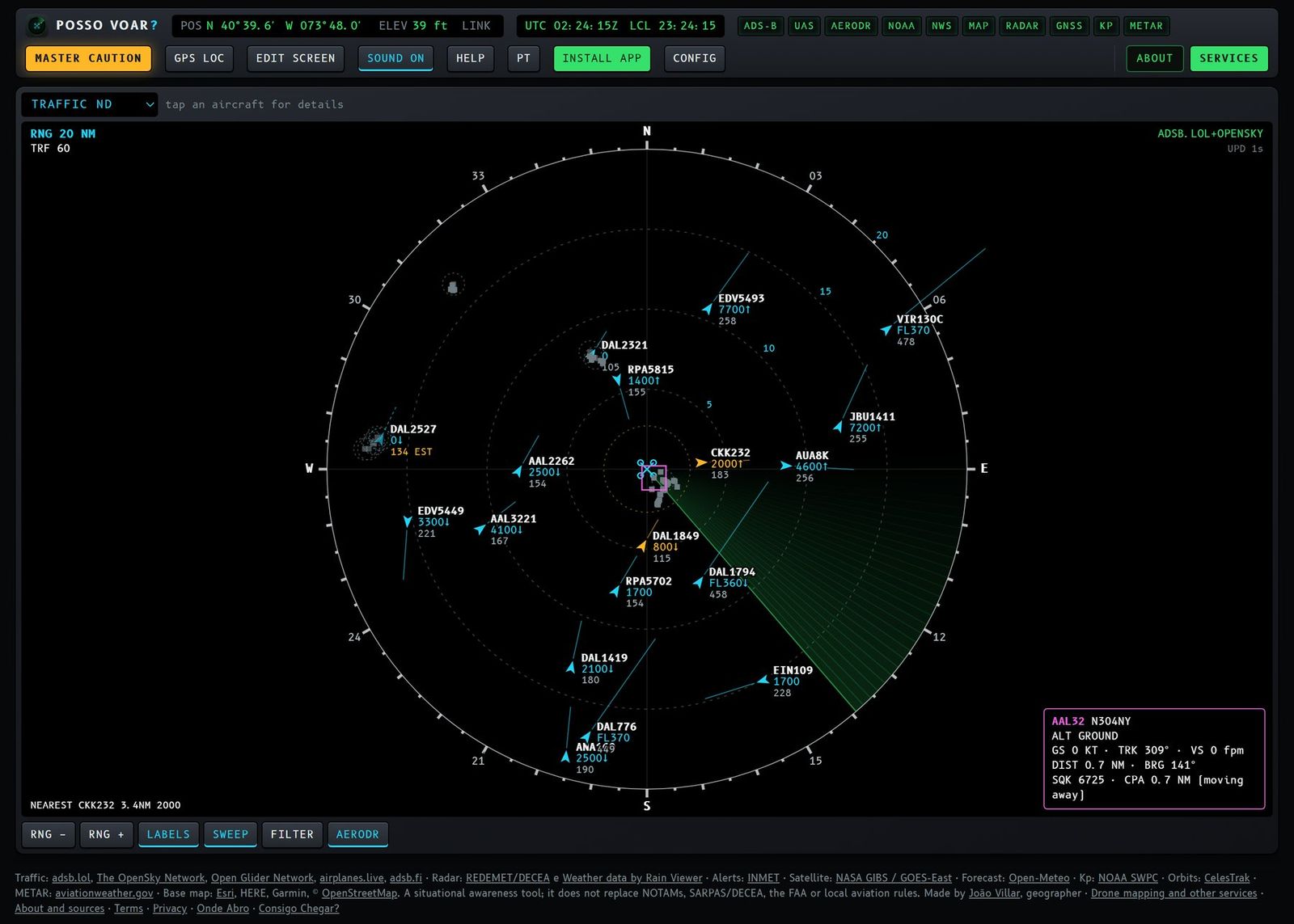
Estimated position (EST). Near the ground, during approach and takeoff, receivers often lose the signal, exactly when the aircraft is at drone height. So the panel does what Flightradar24 does: when the signal is lost, the aircraft stays on screen, moving along its last track, speed, turn rate and climb or descent rate. It appears:
- faded, with a dashed ring and EST next to the speed;
- with "EST" also in the Traffic list and the WX radar;
- on the card, with the note ESTIMATED POSITION · no signal for N s.
An estimated aircraft keeps generating alerts, with the estimated height. It stays on screen for up to 3 minutes without signal. If it was descending and the estimate reaches the ground, it stops on the runway and leaves 1 minute later.
Caution. Only aircraft with an ADS-B transponder or an OGN tracker picked up by volunteer receivers appear. Helicopters and low aircraft often do not appear, and the estimated position is a projection, not a radar. An empty radar does not mean an empty sky.
5.2 Weather radar (WX RADAR)
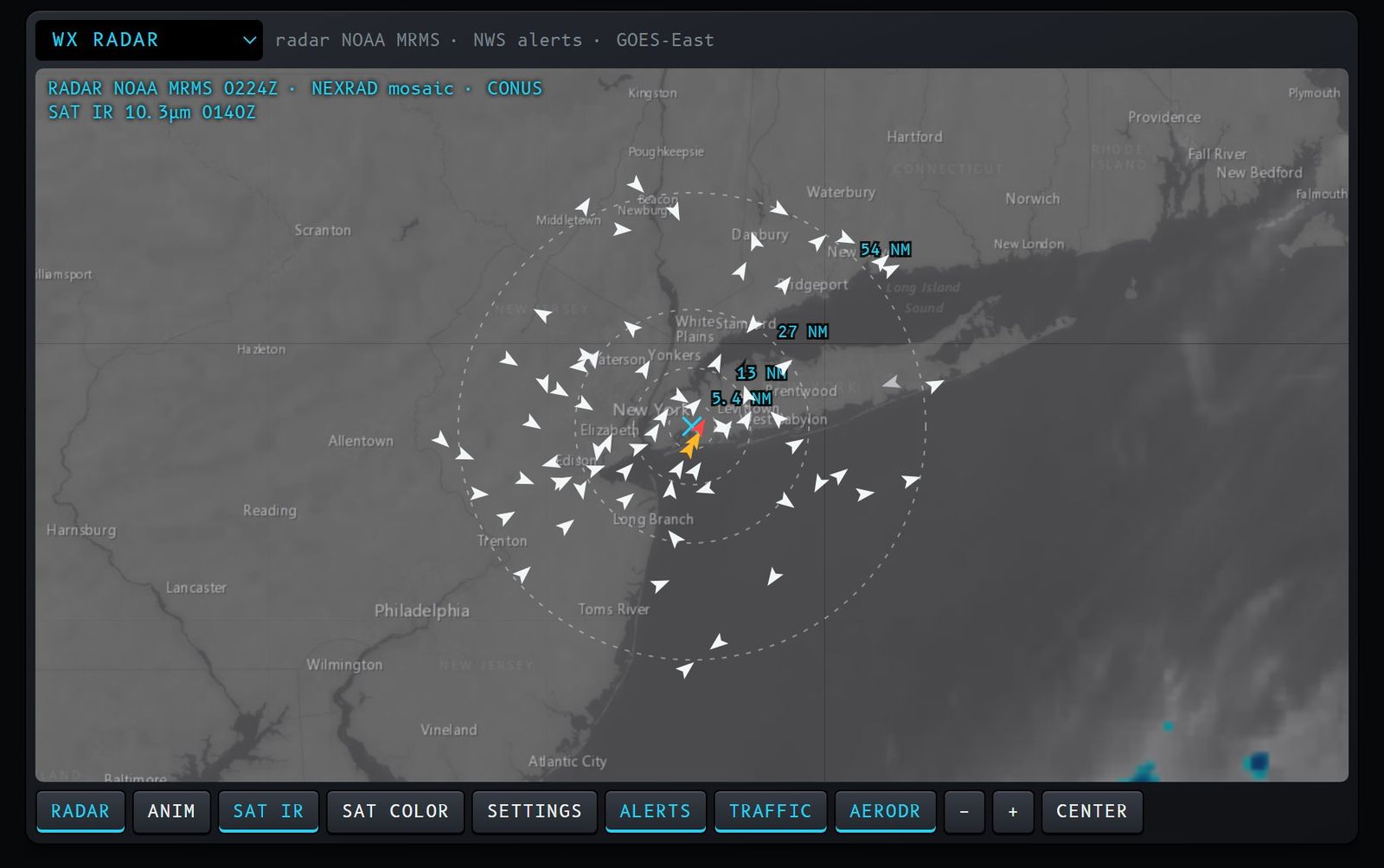
On the default screen: yes, first row, second frame.
What it is for. See if rain or a storm is coming, from where and how strong, together with the official weather alerts.
What you see:
- rain from the radars (REDEMET in Brazil, NOAA MRMS in the USA, RainViewer elsewhere), over the satellite image;
- the official alerts (INMET in Brazil, NWS in the USA) as colored polygons;
- air traffic and aerodromes, to compare with the rain;
- you at the center, with distance rings;
- the tag in the corner: source, product, UTC time of the latest image and how many radars are on screen.
Keys:
- RADAR: turns the rain on and off;
- ANIM: animates the latest images, to see the movement;
- SAT IR: infrared satellite (works at night; high cold clouds in white);
- SAT COLOR: true color satellite (daytime only);
- SETTINGS: opens the radar panel (below);
- ALERTS, TRAFFIC, AERODR: turn those layers on and off;
- − / +: zoom; CENTER: back to your position.
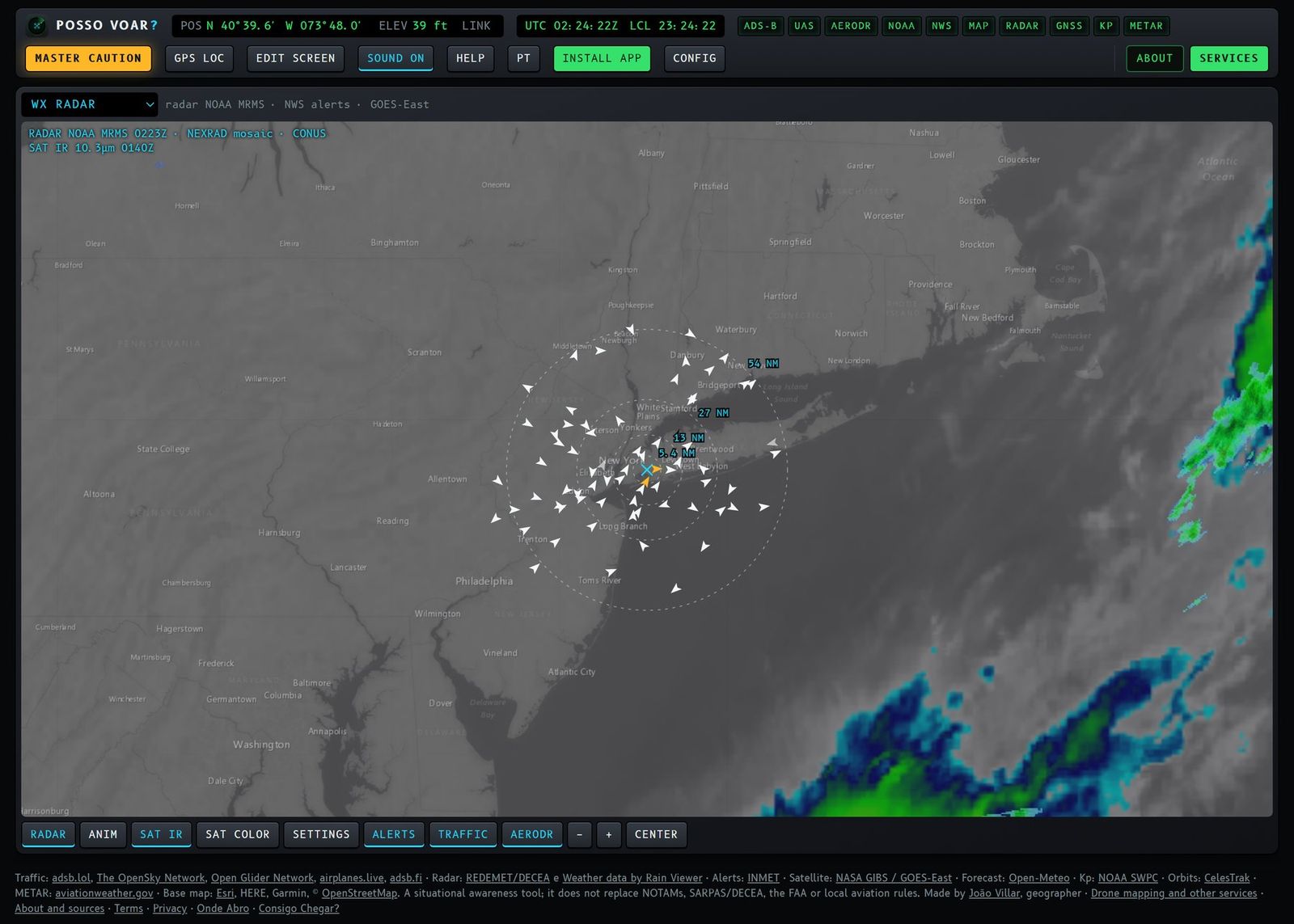
RADAR SETTINGS:
- Source: automatic by region (default), DECEA/REDEMET (Brazil), NOAA MRMS (USA) or RainViewer (worldwide).
- Product and altitude (REDEMET):
- MAXCAPPI (default): the strongest rain at any height, with a range of about 400 km per radar;
- CAPPI 3, 5, 7 or 10 km: slice at a fixed altitude, with a range of about 250 km and more detail. Strong echoes in the 7 and 10 km slices indicate storm clouds.
- Range (REDEMET): only the nearest radar, radars within 150, 300 or 500 km of you, or all of Brazil.
- NOAA MRMS: quality-controlled base reflectivity, mosaic of all NEXRAD radars, updated every ~2 minutes, no animation.
- Animation frames (3 to 15), speed and opacity.
- Colors, RainViewer only.
Caution. The radar shows the rain of a few minutes ago. Lightning and gusts can arrive before the rain: if there is a strong echo less than 20 km away, do not take off.
5.3 Wind
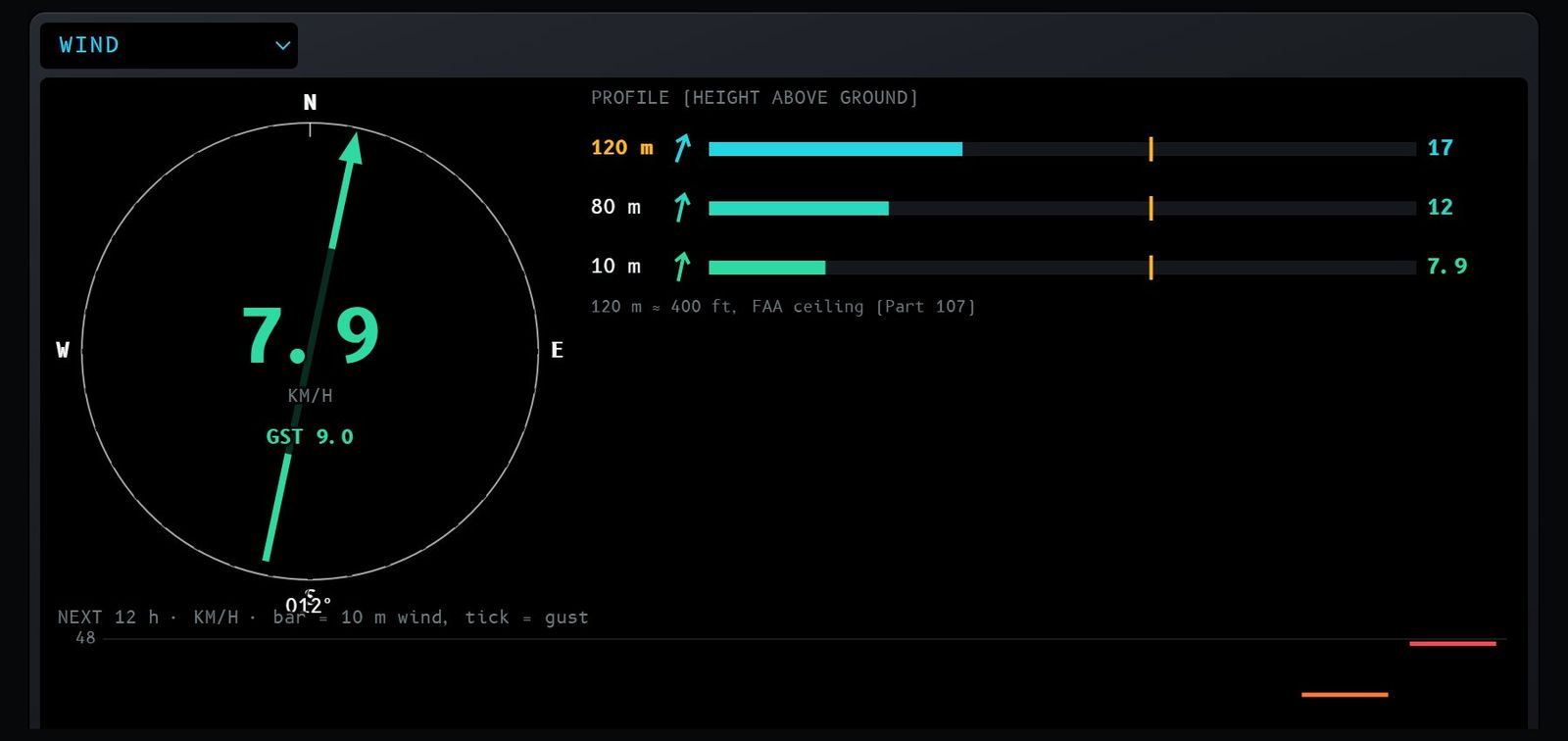
On the default screen: yes, first row, third frame. In a narrow frame, the dial, the profile and the forecast are stacked.
What it is for. Know whether the drone can handle the wind now, at the height you will fly, and in the next hours.
What you see:
- dial: the arrow points where the wind goes; at the center, the speed at 10 m; the direction it comes from (degrees) and the gust (GST);
- vertical profile: wind at 10, 80, 120 m (usual open-category ceiling, highlighted) and 180 m, with direction arrow, bar and value; the amber tick on each bar is your wind limit. In the USA (NOAA HRRR), the profile shows 10, 80 and 120 m;
- next 12 h: bars = wind at 10 m, tick = gust, dashed amber line = your limit; a blue strip under the bar means a 30% or higher chance of rain;
- next to the name, the terrain elevation at your spot and the forecast model.
Wind colors: green = light, amber = near the limit, red = above it.
Keys: none; units (km/h, m/s or knots) and limits are in CONFIG.
Caution. It is a model forecast for the point, not a measurement. In valleys, on slopes, near tall buildings or by the sea the real wind can be very different.
5.4 Alerts
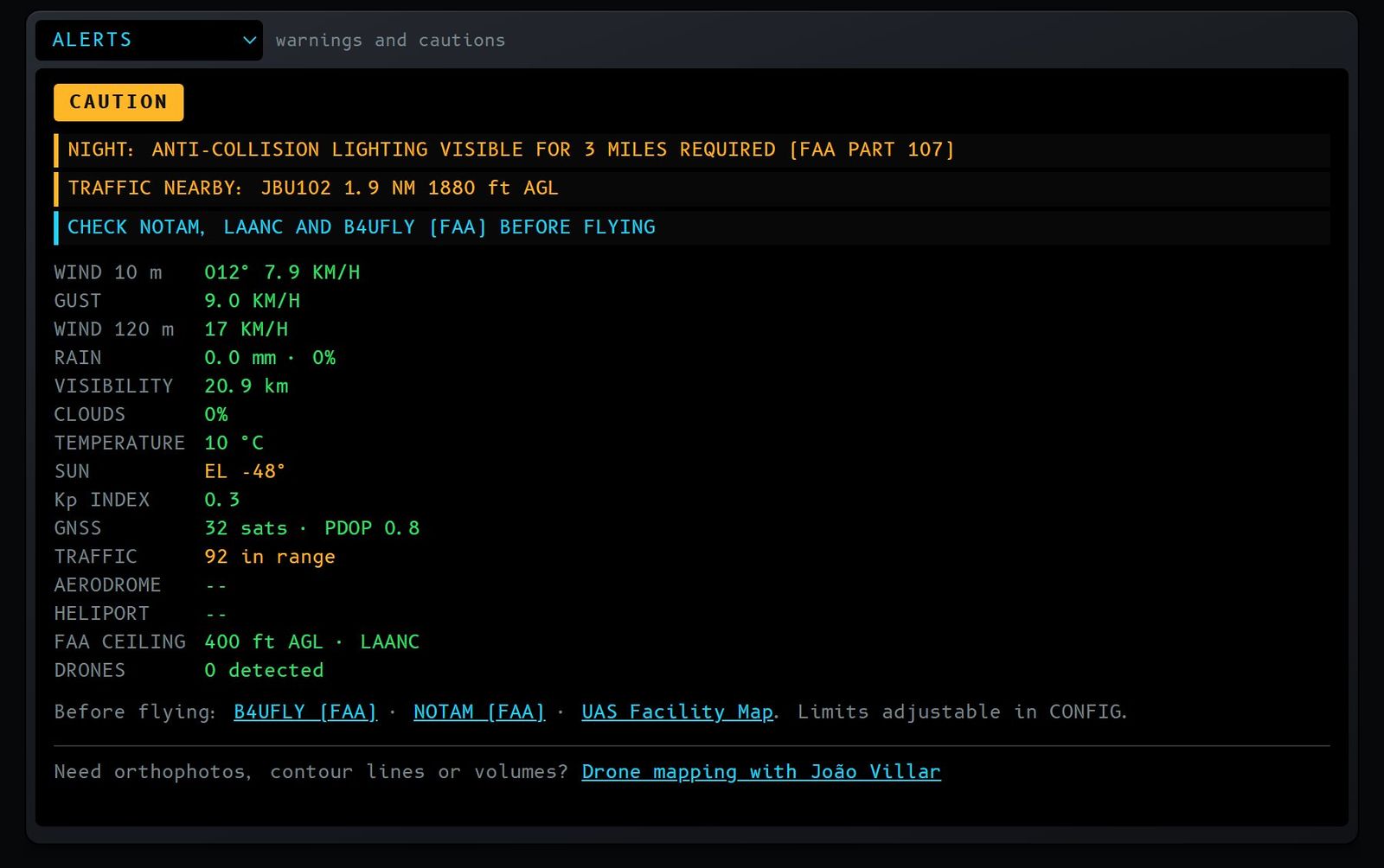
On the default screen: yes, first row, right.
What it is for. It is the panel's EICAS: it gathers everything the other instruments know and tells you at a glance whether you can fly.
What you see:
- summary at the top: DO NOT FLY (red), CAUTION (amber) or CONDITIONS OK (green);
- alert list, red first, then amber and informational (blue), for example: inside a restriction zone, nearby traffic, aerodrome or heliport nearby, official weather alert, night, wind above the limit;
- parameter table: wind, gust, wind at 120 m, rain, visibility, clouds, temperature, Sun, Kp, GNSS, traffic, aerodrome, heliport, FRZ ceiling and drones; anything past the limit is amber;
- links to the official services: AISWEB (NOTAM) and SARPAS in Brazil, B4UFLY, FAA NOTAM and the UAS Facility Map in the USA.
What turns red (MASTER WARNING): low and close traffic or emergency; being inside a zone with a 0 m ceiling; wind or gust well above the limit; rain; visibility below 3 km; Kp 5 or more; PDOP above 6; another drone less than 300 m away; an extreme official weather alert.
What turns amber (MASTER CAUTION): traffic inside the alert radius; zone with a reduced ceiling (30, 60 or 90 m); wind or gust above the limit; wind at 120 m above the limit; likely rain; visibility below 5 km; extreme cold or heat for the battery; night; Kp 4; few satellites; a drone less than 1 km away; aerodrome less than 5 km or heliport less than 2 km away; a severe official weather alert.
Keys: none. The MASTER WARNING / CAUTION button in the top bar flashes along and silences the alarm (section 6). Limits are in CONFIG.
5.5 COM 1 and COM 2 radio
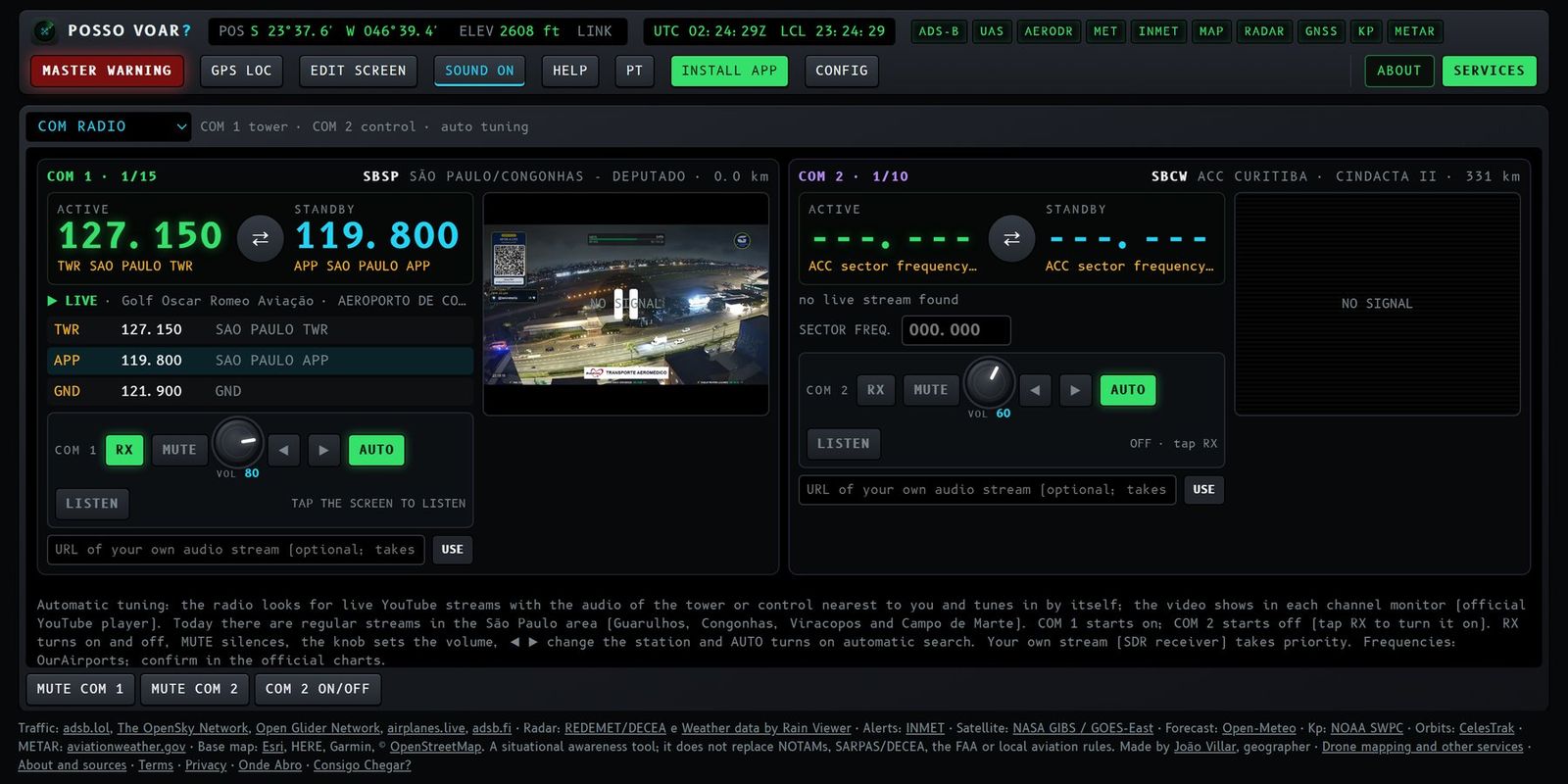
On the default screen: yes, right below the first row (scroll down), full width, with COM 1 and COM 2 side by side.
What it is for. It simulates the cockpit audio panel. It shows the tower, approach and control frequencies near you and, where there is a live stream, plays the real audio inside the panel.
COM 1 (tower and approach) starts on. COM 2 (control center) starts off: tap COM 2's RX, or the COM 2 ON/OFF key, to turn it on. Both can play at the same time, each with its own volume.
Display of each channel:
- at the top, the channel and the station (for example "COM 1 · 1/15" and "KJFK JOHN F. KENNEDY · 2.9 km");
- ACTIVE (amber) and STANDBY (blue) frequencies, with the ⇄ button to swap them;
- the status line and, on the audio panel, the sound status: SEARCHING, ON AIR · 80% (playing, with the volume), MUTED (receiving), TAP THE SCREEN TO LISTEN, NO LIVE AUDIO HERE or OFF;
- the station frequency list; tapping a line puts that frequency on standby;
- on COM 2 in Brazil, a field to type the control center sector frequency, taken from the ENRC chart;
- on the right, the monitor with the official YouTube player.
Automatic tuning (AUTO). With AUTO lit, the channel searches by itself for a live stream with the audio of the tower or control nearest to you. While searching, the digits roll and you hear static. When it finds one, the video opens on the monitor and the frequency changes to that station's. Today there are regular streams in the São Paulo area (Guarulhos, Congonhas, Viracopos and Campo de Marte); in other regions they show up when some channel goes live.
Audio panel of each channel:
- RX: turns the channel on and off;
- MUTE: silences without turning it off;
- VOL knob: turn it by dragging, with the mouse wheel or with the arrow keys;
- ◀ ▶: change the station; if the new station has no stream, you hear static, like a real radio;
- AUTO: turns automatic search on and off; turning it off and on again searches again;
- LISTEN: opens LiveATC in a window (very useful in the USA, where LiveATC covers many airports);
- URL / USE: field for the stream of your own receiver (SDR, Icecast, MP3 or AAC over HTTPS), which takes priority over YouTube.
Instrument keys: MUTE COM 1, MUTE COM 2 and COM 2 ON/OFF.
Caution. The browser only allows sound after the first tap on the page. Frequencies come from OurAirports; confirm them in the official charts. Listening does not replace official coordination.
5.6 METAR
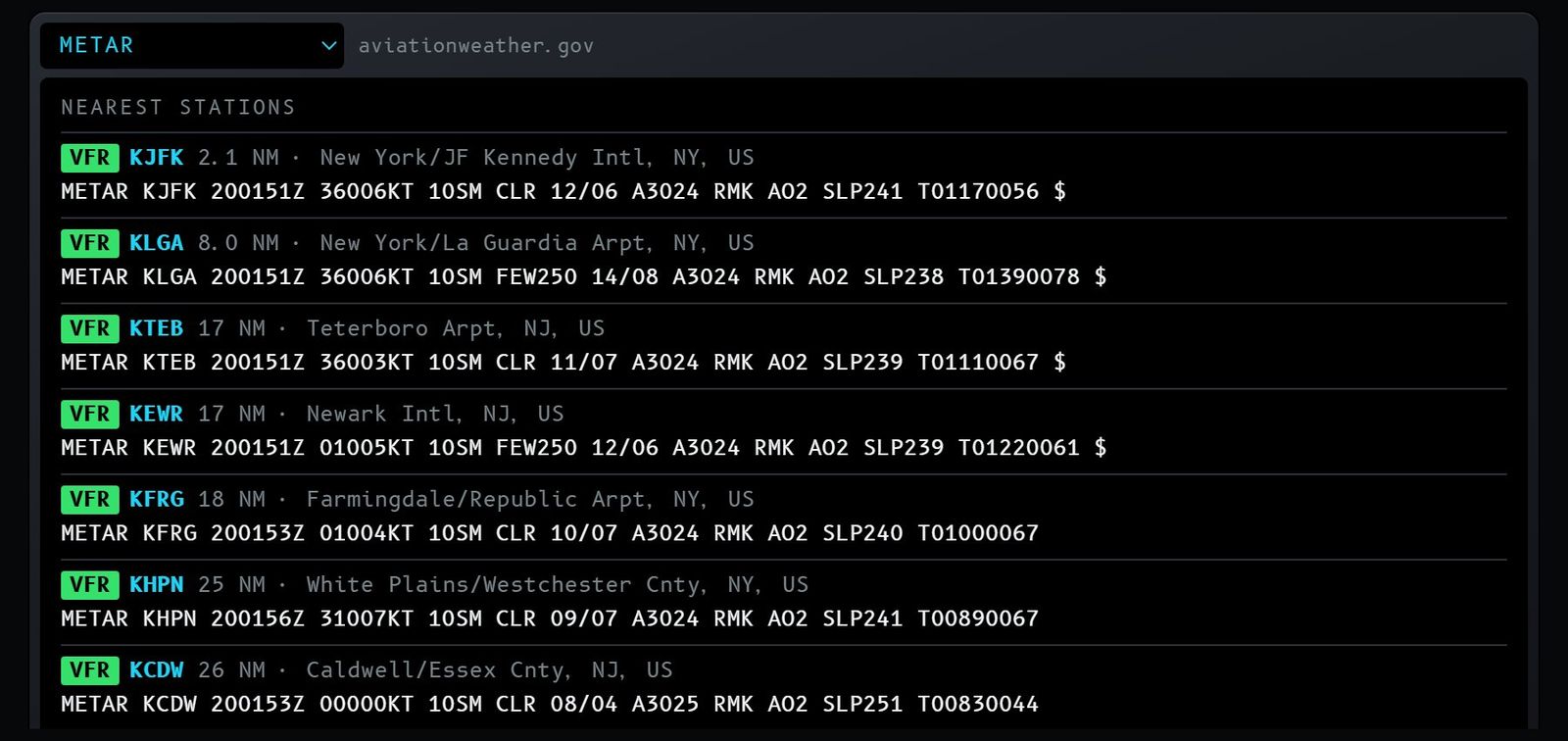
On the default screen: yes, at the bottom of the page, below the radio.
What it is for. See the weather observed now at the nearest airports: wind, visibility, clouds, temperature and pressure.
What you see: for each station, the flight category, the ICAO code, the distance, the name and the original METAR message.
- VFR (green): good conditions;
- MVFR (blue): marginal;
- IFR (red): poor;
- LIFR (magenta): very poor.
How to read a METAR, example: METAR KJFK 200051Z 31008KT 10SM FEW250 12/03 A3012 = JFK, day 20 at 00:51 UTC, wind from 310° at 8 knots, visibility 10 statute miles, few clouds at 25,000 ft, temperature 12 °C, dew point 3 °C, altimeter 30.12 inHg.
Keys: none.
Caution. The METAR is hourly and applies to the airport, which may be far from you.
Optional instruments
5.7 Traffic list
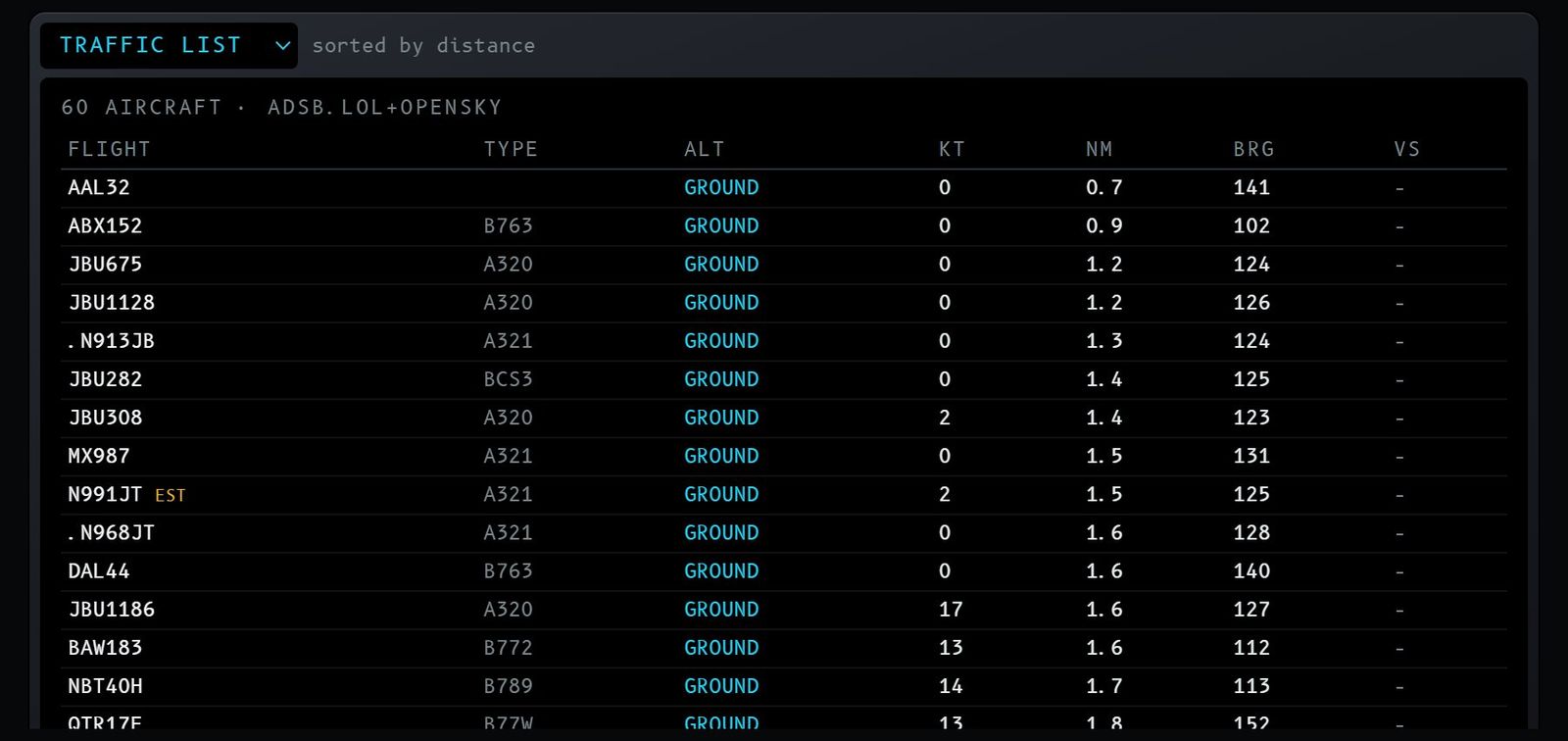
On the default screen: no; add it as TRAFFIC LIST.
What it is for. Read the traffic as a table, useful on small screens or with many aircraft.
What you see: up to 60 aircraft, from nearest to farthest, with flight, type, altitude (or GROUND), speed, distance, bearing (BRG, from you to it) and vertical rate. Amber or red lines follow the radar colors, and helicopters appear as HELI. In the title, the total and the source.
Use: tap a line to also highlight the aircraft on the Traffic ND; tap again to release it.
Keys: none; filter and units are those of the radar and CONFIG.
5.8 Nearby drones
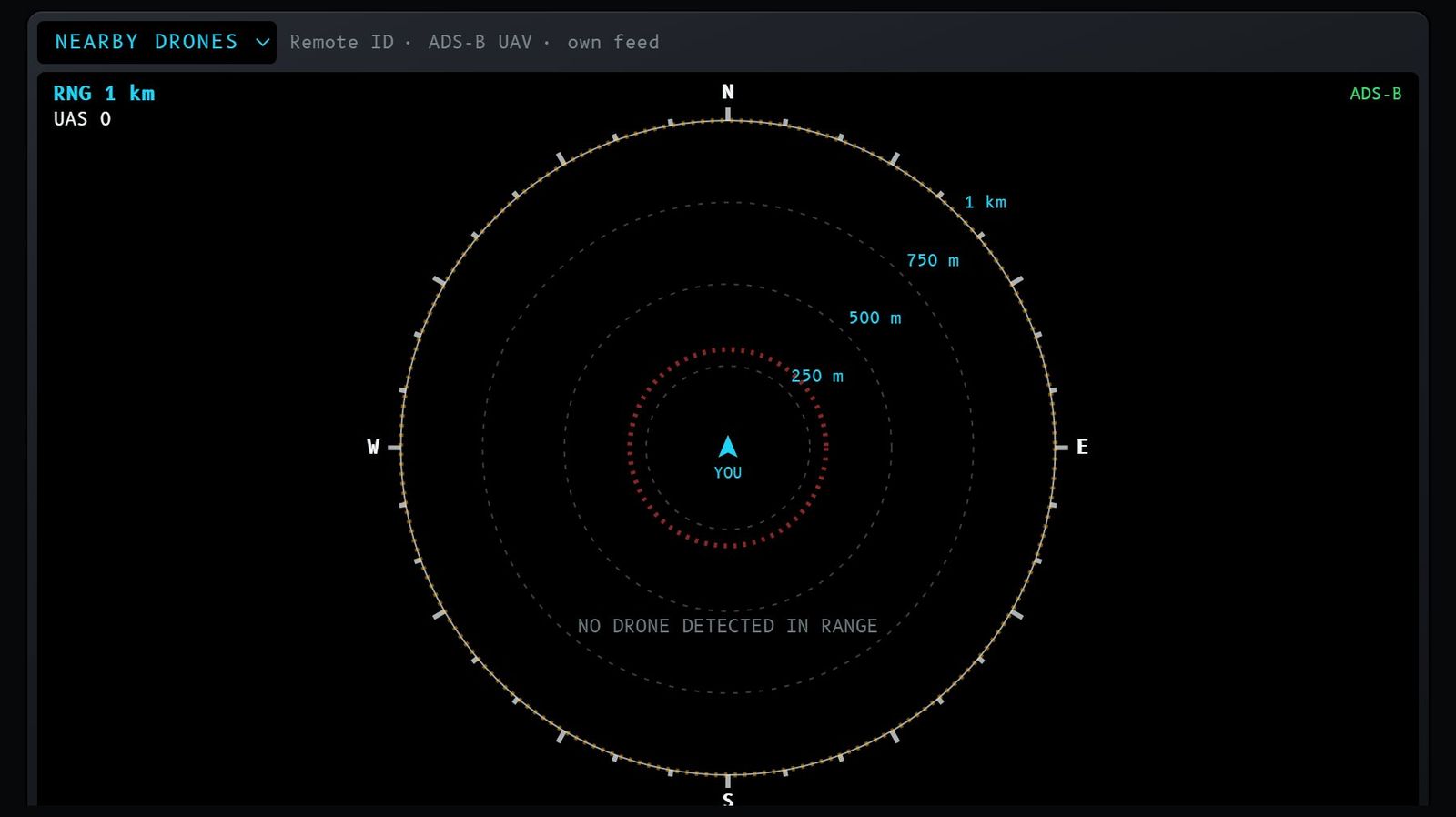
On the default screen: no; add it as NEARBY DRONES.
What it is for. Short-range radar for other drones in your area.
What you see: detected drones with distance, height, speed and, when the drone reports it, the operator position. Below, the active sources: BLE RID (phone Bluetooth), ADS-B UAV and FEED (your own feed set in CONFIG).
Keys:
- RNG − / RNG +: range from 250 m to 20 km;
- LABELS: turns texts on and off;
- OPERATOR: shows where each drone's pilot is;
- AERODR: turns aerodromes and heliports on and off;
- BLE RID: turns on Remote ID reading over Bluetooth (Chrome on Android; not available on iPhone). The browser asks for permission.
Caution. Drones without Remote ID do not appear. An empty screen does not mean there are no drones.
5.9 Situation Map
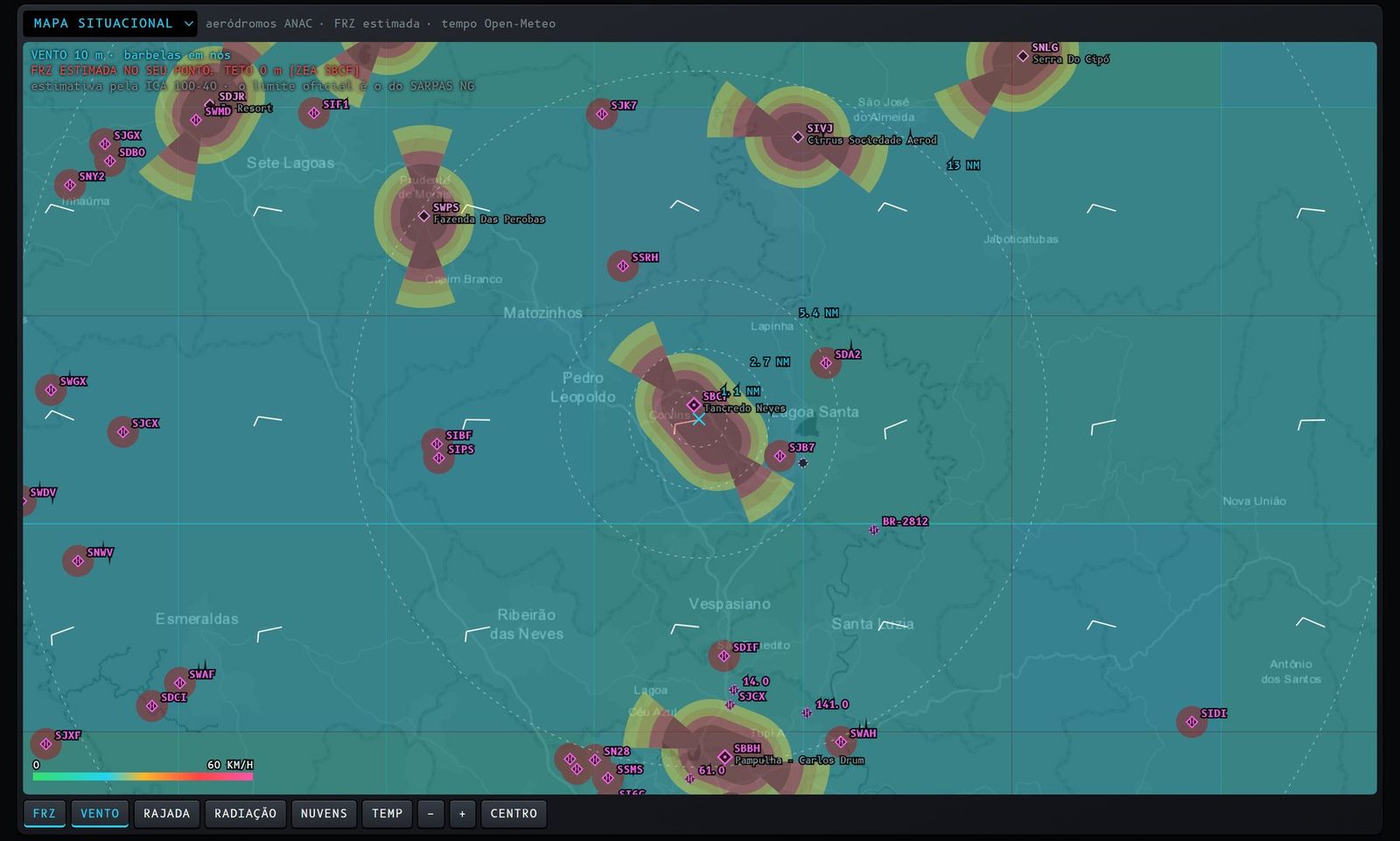
On the default screen: no; add it as SITUATION MAP. In Brazil, it is the instrument to check whether you are in a restriction zone.
What it is for. Working map with aerodromes, heliports and, in Brazil, the ICA 100-40 flight restriction zones (FRZ), plus gridded weather around you.
Zone colors (Brazil), by the allowed ceiling:
- dark red: 0 m (forbidden without authorization);
- red: 30 m;
- orange: 60 m;
- yellow: 90 m.
Around aerodromes, the zone follows the runway; at the thresholds, the approach sectors reach 6.3 km. Around heliports, they are circles. The corner shows the FRZ ceiling at your spot. Places with a dashed diamond are not in the ANAC register and have no zone.
In the USA there are no ICA zones: the map reminds you of the FAA rules (up to 400 ft AGL and LAANC authorization near Class B, C, D and E airports) and points to the official map in B4UFLY or the FAA UAS Facility Map.
Weather layers (one at a time, in colored squares with the value): wind, gust, radiation, clouds and temperature.
Keys:
- FRZ: turns the zones on and off;
- WIND, GUST, RADIATION, CLOUDS, TEMP: choose the weather layer;
- − / +: zoom; CENTER: back to your position.
Caution. In Brazil the official limit is always the one on the SARPAS NG map. The panel rebuilds the zones from the rules and may differ in special cases.
5.10 Solar
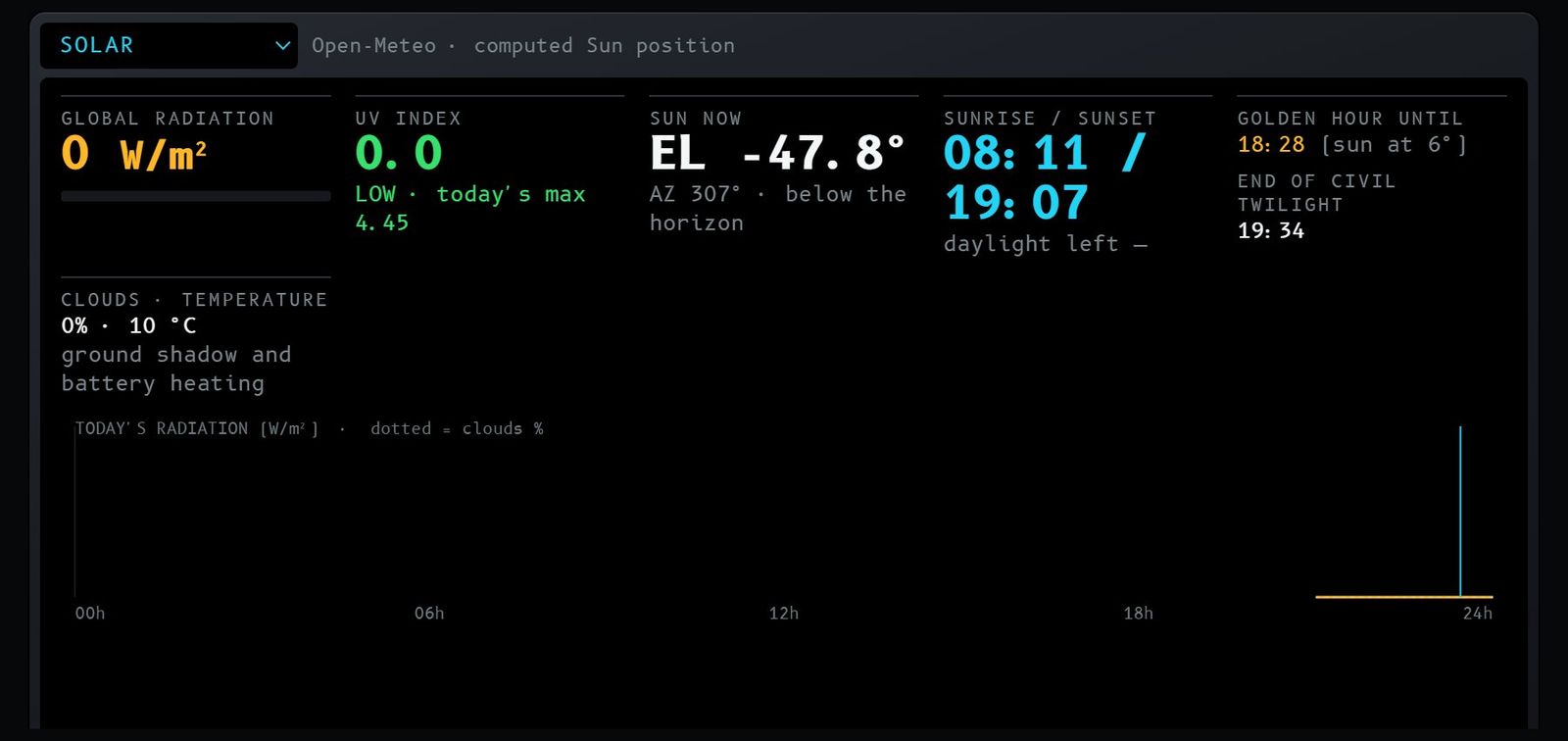
On the default screen: no; add it as SOLAR.
What it is for. Plan the light: how much daylight is left, whether shadows will be short for mapping and whether the sun will bother the camera.
What you see:
- GLOBAL RADIATION (W/m²) with a bar;
- UV INDEX, with the category (low to extreme) and today's maximum;
- SUN NOW: elevation (EL) and azimuth (AZ);
- SUNRISE / SUNSET and the daylight left;
- GOLDEN HOUR UNTIL (Sun at 6°) and END OF CIVIL TWILIGHT (after it, it is a night flight, which requires authorization and lights);
- CLOUDS · TEMPERATURE, which affect shadows and the battery;
- chart of today's radiation, with clouds dotted and the cyan line marking now.
Keys: none.
5.11 GNSS sky
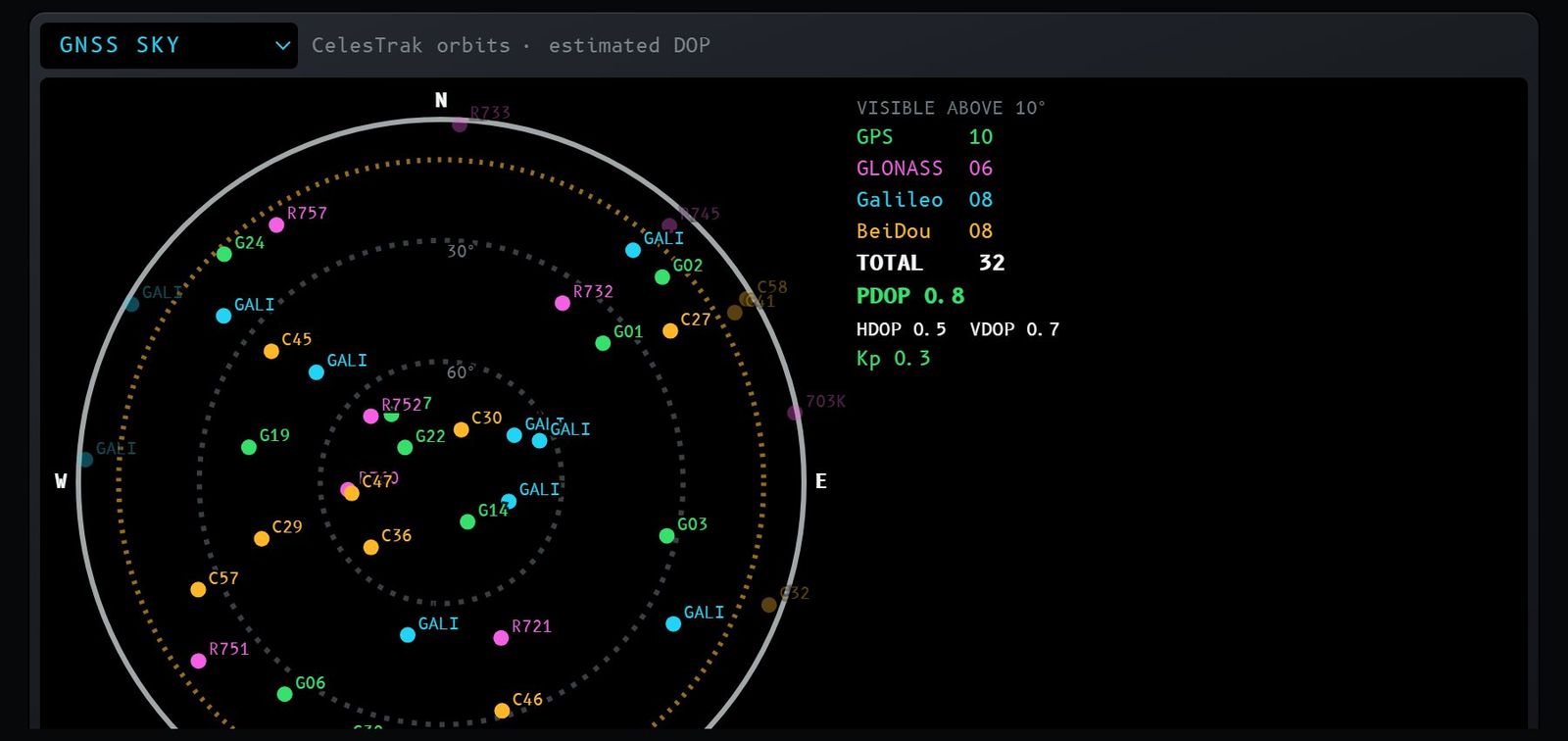
On the default screen: no; add it as GNSS SKY.
What it is for. Know whether there will be enough satellites for a good position, especially for mapping and automatic flights.
What you see:
- sky chart: center = zenith, edge = horizon, 30° and 60° rings; each dot is a satellite with its number, in the constellation color; the amber circle is the elevation mask (satellites below it are faded); the Sun appears in yellow;
- on the side, the count per constellation (GPS, GLONASS, Galileo, BeiDou) and the total;
- PDOP, HDOP and VDOP: the lower the better (below 2 is excellent; above 4 turns amber, above 6 red);
- the current Kp.
Keys:
- GPS, GLO, GAL, BDS: turn each constellation on and off, to simulate a receiver that does not use them all;
- MASK − / MASK +: lower and raise the elevation mask, in 5° steps.
Caution. It is the sky computed for an open site. Buildings, trees and hills block satellites.
5.12 Space weather
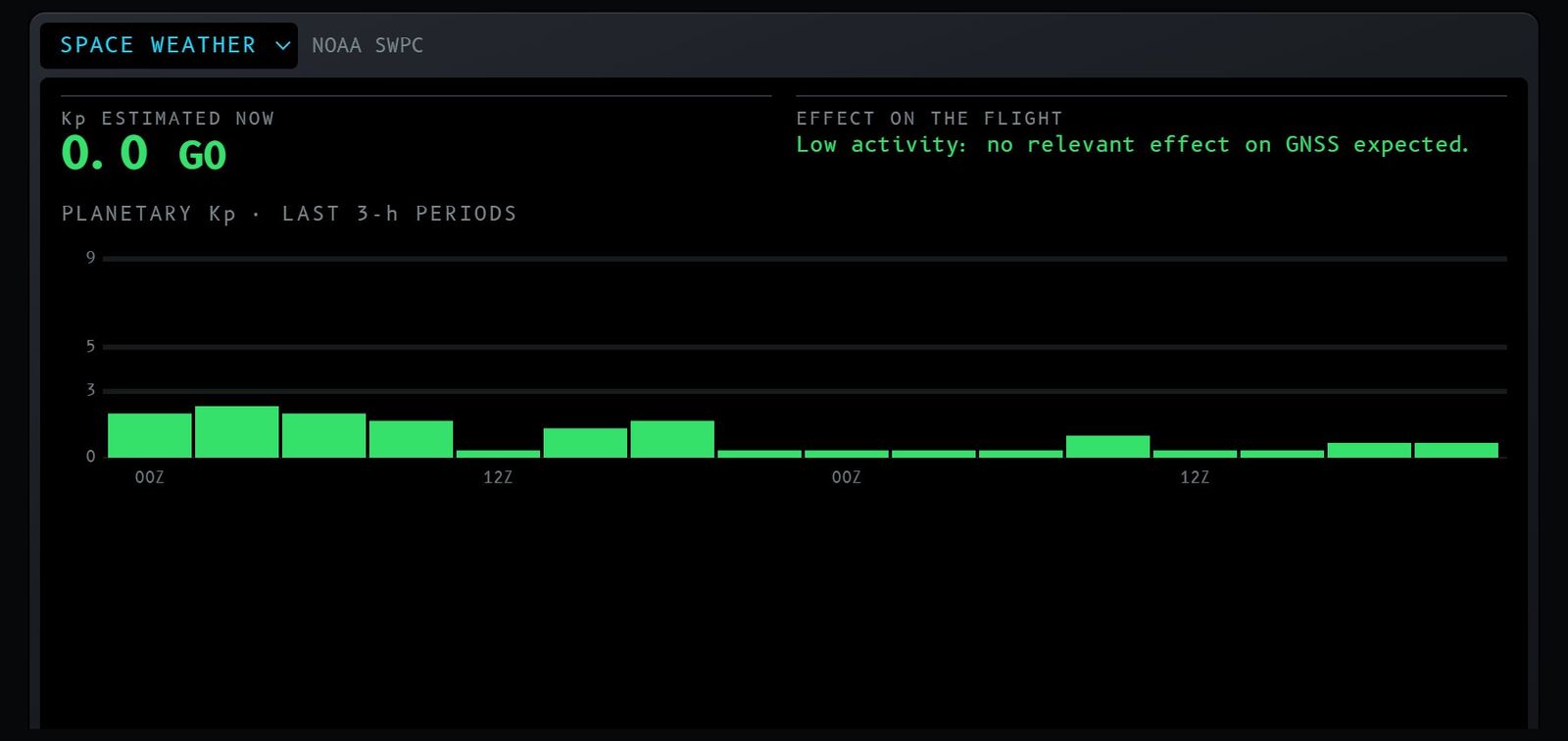
On the default screen: no; add it as SPACE WEATHER.
What it is for. Warn you when a geomagnetic storm may disturb the drone's GPS and compass.
What you see:
- Kp ESTIMATED NOW, with the G scale (G0 to G5);
- EFFECT ON THE FLIGHT, in text: low activity, elevated (watch satellites and HDOP), storm (avoid automatic and beyond-line-of-sight flights) or strong storm (do not rely on GNSS);
- chart of Kp over the last 3-hour periods (green below 4, amber 4, red 5 or more).
Keys: none.
5.13 NOTAM
On the default screen: no; add it as NOTAM.
What it is for. Read the NOTAMs (notices to airmen) of the nearest aerodromes without leaving the panel: closed runway or aerodrome, obstacles and cranes, parachute jumping, military exercises, temporary restrictions and drone notices.
What you see: the active NOTAMs of up to 5 aerodromes within 40 km, grouped by aerodrome, with number, validity (UTC) and the original text. Those mentioning drones (UAS, RPA), obstacles, parachuting, exercises, helicopters or a closed runway/aerodrome are amber.
Sources: in Brazil, the AISWEB API (DECEA); in the USA, the FAA NOTAM API. Both require a free key held by the site owner, stored as a Cloudflare secret. Until the key is configured, the instrument shows "NOTAM: API KEY MISSING" and the link to check in the official service.
Keys:
- DRONE ONLY: shows only the NOTAMs highlighted in amber;
- REFRESH: fetches again (NOTAMs are cached for 10 minutes).
Caution. Area NOTAMs (FIR, special use airspace) and temporary flight restrictions (TFR) may not be tied to an aerodrome. Always check AISWEB or the FAA before flying.
6. Alarms and voice
- MASTER WARNING (red): the chosen alarm sound (by default the Airbus continuous repetitive chime) and the voice with the risk ("WARNING. TRAFFIC, TRAFFIC", "WARNING. RESTRICTED AREA", "WARNING. HIGH WIND"…). It repeats every 5 s until you tap the MASTER button, which acknowledges the alarm, and only comes back if a new risk appears. In CONFIG → WARNING REPETITION you can make it continuous like in the cockpit, space it to every 15 s or play it just once. The sounds imitate cockpit alarms but are synthesized by the panel itself, with no recordings.
- MASTER CAUTION (amber): a chime and "CAUTION. …", once per new caution.
- Messages: TRAFFIC, HELICOPTER TRAFFIC, DRONE TRAFFIC, RESTRICTED AREA, HIGH WIND, GUSTS, RAIN, LOW VISIBILITY, GEOMAGNETIC STORM, GPS DEGRADED, WEATHER WARNING, NIGHT, AERODROME NEARBY, HELIPORT NEARBY and NO DATA.
- Silence: the MASTER button silences the current alarm, the SOUND button silences everything, and CONFIG sets the mode, the sound, the alarm volume, the voice volume and whether the voice is on.
7. Install as an app
- Android (Chrome): the INSTALL APP button at the top, or the ⋮ menu → Install app.
- iPhone and iPad: in Safari, tap Share → Add to Home Screen → Add. Chrome also works, from iOS 16.4.
- Computer (Chrome or Edge): install icon in the address bar.
The app opens full screen and updates by itself. Long-pressing the icon shows shortcuts to Traffic, Situation Map and Radio. Offline, it opens and shows NO CONNECTION; live data is never served from storage. On iPhone there is no Remote ID reading over Bluetooth. On no device do the alarms sound with the screen locked.
8. Language, theme and use in the United States
Language. The whole site exists in English and Portuguese: the panel, the About, Services, Privacy and Terms pages and this manual. On the first visit it opens in Portuguese in Brazil and in English outside Brazil. To switch, tap EN or PT at the top, or use CONFIG → LANGUAGE. The alarm voice is always in English, as in aviation.
Theme. The default is the dark theme, like cockpit displays. The light theme (CONFIG → COLOR THEME) inverts the drawn screens while keeping the meaning of the colors, and switches maps to the light base map; radar, satellite and video images do not change.
In the United States. When the position is in the USA, the panel switches sources and rules by itself:
- Airports and heliports: OurAirports base compiled from FAA data, with 25,000 places, runways and frequencies (the radio shows, for example, New York Approach frequencies);
- Forecast: NOAA models (GFS and HRRR); the wind profile shows 10, 80 and 120 m;
- Alerts: official National Weather Service alerts; the INMET light becomes NWS;
- Radar: NOAA MRMS mosaic of all NEXRAD radars ("Automatic by region" source in RADAR SETTINGS);
- Rules: there are no ICA 100-40 zones. The Situation Map and the Alerts remind you of the FAA rules: up to 400 ft AGL, LAANC authorization near Class B, C, D and E airports, and checking B4UFLY and the FAA NOTAMs.
9. Link with place and instruments
The address can carry the position and the instruments, without changing what is saved on the device. Use it to send a colleague the area of a flight:
possovoar.com.br/?lat=40.66&lon=-73.80&lang=enopens your panel at that spot, in English;possovoar.com.br/?lat=40.66&lon=-73.80&w=campo,ventoopens only the Situation Map and the Wind.
Instrument names for w: trafego (traffic ND), lista (traffic list), drones, meteo (WX radar), campo (situation map), radio, vento (wind), solar, gnss, espaco (space weather), metar, notam and alertas (alerts).
10. Pre-flight checklist
- Correct position (POS at the top) and green lights.
- MASTER: no red. Read every alert in the Alerts panel.
- Airspace: in Brazil, the FRZ ceiling at your spot on the Situation Map (if 0 m or below your flight height, request authorization in SARPAS NG with the required lead time); in the USA, LAANC authorization near airports.
- Wind at 120 m and gusts within your drone's limits, and no rain approaching on the radar.
- GNSS with low PDOP and Kp below 4.
- Traffic and helicopters: stay alert, especially near heliports and hospitals.
- Enough daylight to finish the flight (Solar).
- Check the NOTAMs (NOTAM instrument, AISWEB or FAA) and your airspace authorization (SARPAS or LAANC). The panel does not replace these checks.
11. Frequently asked questions
Why does Flightradar24 show aircraft that the panel does not? Flightradar24 has its own receivers, multilateration (MLAT) and radar data. The panel merges open networks: adsb.lol, OpenSky and OGN. OpenSky comes in through a bridge on the author's computer and covers takeoffs and landings well at airports such as Rio's Galeão; if this bridge is down, low coverage near airports drops. Helicopters and aircraft without ADS-B may not appear on any open network. When in doubt, check more than one source and look at the sky.
What does EST next to an aircraft mean? Its signal was lost and its position is being estimated from its last track, speed, turn and climb or descent rate (section 5.1). It keeps counting for alerts for up to 3 minutes.
A light turned red. What now? The source did not respond, and the instrument shows NO DATA. Wait for the next update or check another source. The panel does not make up data.
I can't hear the alarms or the radio. Tap the screen once, check the SOUND button, the alarm mode in CONFIG, the device volume and, on the radio, that the channel is on RX and not on MUTE.
The radio says "no live audio here". There is no live ATC audio stream near you now. Try another station with ◀ ▶ or use LISTEN for LiveATC.
Why doesn't the Três Marias radar (or another radar near me) show up? The panel uses all 26 radars that REDEMET distributes, from DECEA and Cemaden. A radar that is down sends no image and does not appear. The Três Marias/MG radar has not published data since October 2025. Near Belo Horizonte, rain comes from the Santa Teresa, Pico do Couto, Gama and São Francisco radars, which are far away, so light, low rain may not show. INMET has no radars; it publishes the warnings.
Is the panel's restriction zone official? No. In Brazil it is a reconstruction of the ICA 100-40 model; the official limit is the one in SARPAS NG. In the USA, the official source is the FAA (B4UFLY, UAS Facility Map).
The address was not found. Include the city (for example, "350 5th Ave, New York") or the postal code. If the number is not on the map, the point falls in the middle of the street; adjust the coordinates if needed.
Does the panel keep my data? There is no sign-up. Position, layout and preferences stay only on your device. Details at possovoar.com.br/en/privacy.
How do I go back to the original panel? EDIT SCREEN → DEFAULT LAYOUT, or CONFIG → RESTORE DEFAULTS.
12. Contact
Questions, suggestions and drone mapping services: João Villar · WhatsApp +55 31 99277-5174 · [email protected] · possovoar.com.br/en/contact